
Best Cloud Storage Services in 2026:
10 Options Compared
 By M. Zaid
- Updated October 13, 2026
- 31 min read
Some links on this page are affiliate links. If you buy through them, Etemora may earn a commission at no extra cost to you. Read our affiliate disclosure
- All 10 Services at a Glance
- 1. Google Drive — Best Overall
- 2. OneDrive — Best for Microsoft 365
- 3. Dropbox — Best for Syncing
- 4. IDrive — Best for Backup
- 5. pCloud — Best Lifetime Storage
- 6. Sync.com — Best Secure Sharing
- 7. Proton Drive — Best for Privacy
- 8. Icedrive — Best Encrypted Drive
- 9. Internxt — Privacy Alternative
- 10. MEGA — Best Large Storage
- Full Comparison Table
- What Is Cloud Storage?
- Cloud Storage vs Cloud Backup
- How Much Storage Do You Need?
- What to Look For
- Is Cloud Storage Safe?
- Is Cloud Storage a Backup?
- Best Pick by Use Case
- Cloud Storage Pricing in 2026
- Google Drive vs OneDrive vs Dropbox
- Our 2026 Ranking
- Our Verdict
- How We Compared
- Frequently Asked Questions
Cloud storage has become much more than a place to keep a few documents online. You can use it to automatically back up photos, sync files between computers, collaborate on documents, share large files, protect important data, and reach everything from almost anywhere.
The hard part is choosing. Google Drive is deeply tied into Gmail, Google Photos and Google’s productivity tools. OneDrive is compelling if you already pay for Microsoft 365. Dropbox is still the benchmark for file syncing and sharing, while pCloud, Sync.com and Proton Drive lean much harder into privacy. And services like IDrive are a different animal entirely — they exist for backup, not for a synced folder.
We compared 10 major services on storage capacity, pricing, syncing, file sharing, backup, privacy, security, device support, collaboration and overall value.
Editor’s note
This is a research-based comparison. Etemora has not personally benchmarked upload and download speeds for every provider. Where we mention independent testing or rankings, those findings belong to the publication we cite. Cloud storage plans and pricing change often, so check the provider’s current pricing before subscribing. More on our process in how we review.
Quick picks
- Best overall: Google Drive
- Best for Microsoft 365 users: OneDrive
- Best for syncing and sharing: Dropbox
- Best for backup: IDrive
- Best lifetime storage: pCloud
- Best secure sharing: Sync.com
- Best for privacy: Proton Drive
- Best encrypted virtual drive: Icedrive
- Best privacy alternative: Internxt
- Best large personal storage: MEGA
The 10 Best Cloud Storage Services at a Glance
Free-storage figures and plan details below reflect what each provider listed in September 2026. Promotional pricing changes often and long-term plans usually renew at a different rate, so confirm on the provider’s own page before buying.
| Service | Best for | Free storage | Standout feature |
|---|---|---|---|
| Google Drive | Most people | 15 GB | Google ecosystem and collaboration |
| Microsoft OneDrive | Microsoft 365 users | 5 GB | 1 TB bundled with Office apps |
| Dropbox | Syncing and sharing | 2 GB | The most reliable sync workflow |
| IDrive | Backup | 10 GB | Backs up multiple computers |
| pCloud | Lifetime storage | Up to 10 GB | Pay once instead of monthly |
| Sync.com | Secure sharing | 5 GB | Privacy-first sharing controls |
| Proton Drive | Privacy | 5 GB | End-to-end encryption |
| Icedrive | Encrypted storage | 10 GB | Virtual drive + client-side encryption |
| Internxt | Privacy alternative | 1 GB | Open source, audited, zero-knowledge |
| MEGA | Large storage | 20 GB | Big capacity with encryption |
1. Google Drive — Best Cloud Storage Overall
Best for: most people, and anyone already living inside Gmail, Google Photos and Google Docs.
If you already use Google’s services, Google Drive is the easiest recommendation on this list. Every Google Account includes 15 GB of storage, shared across Drive, Gmail and Google Photos, and Google One handles the paid upgrades — a 100 GB Basic plan starts at $1.99/month, with larger 2 TB and 5 TB tiers above it.
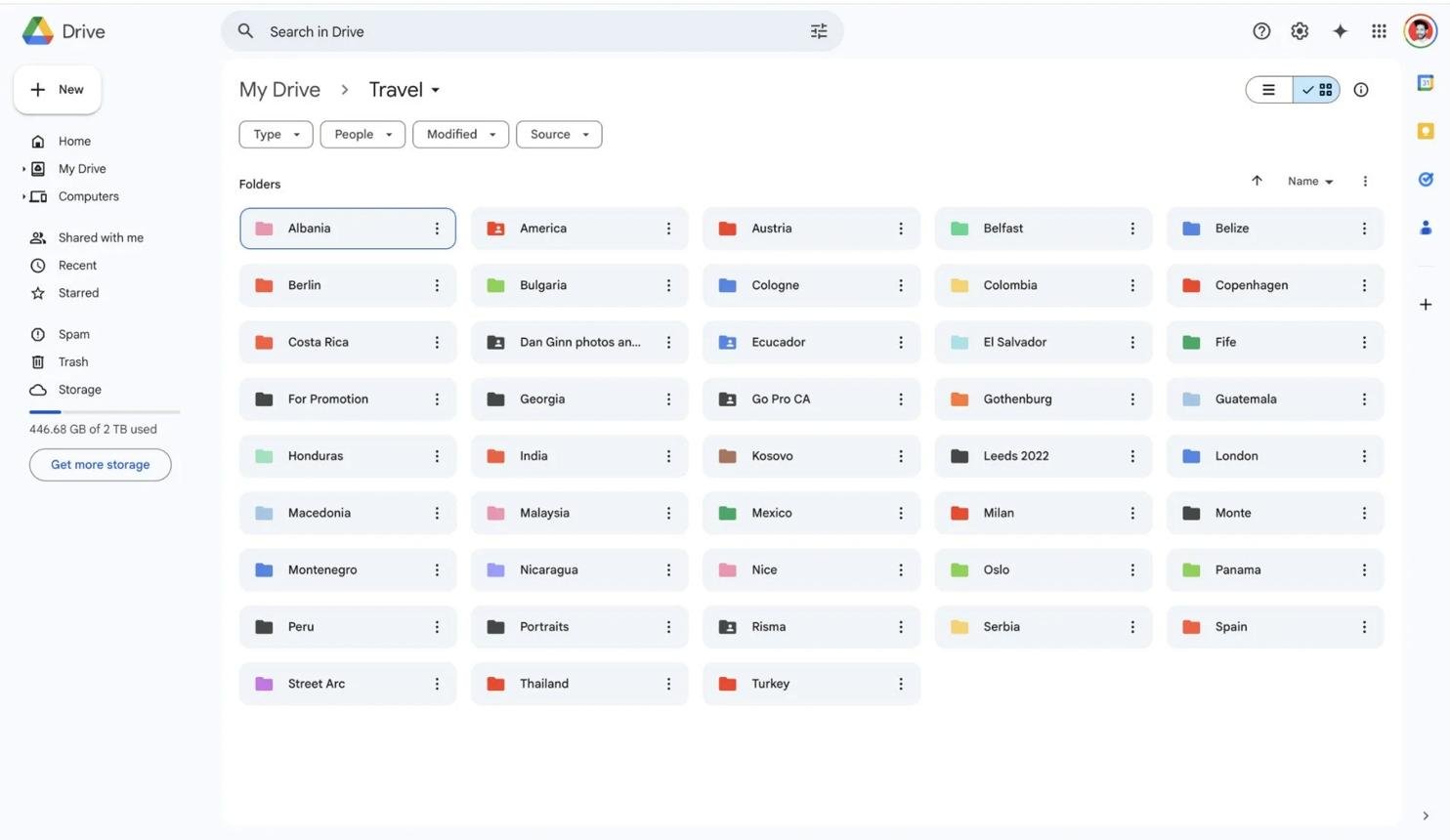
The storage is not the point
The real advantage is the ecosystem around it. You create documents, spreadsheets and presentations, share them with a link, collaborate in real time, and open everything from any device without thinking about it. No other service on this list matches that end to end.
The trade-off is that 15 GB is shared, so a busy Gmail account and a phone auto-uploading photos will eat it faster than you expect. TechRadar’s current cloud-document-storage guide also names Google Drive its top choice for most people, citing the same two reasons: the free tier and the ecosystem.
| Free storage | 15 GB, shared with Gmail and Photos |
| Paid from | $1.99/mo for 100 GB (Google One Basic) |
| Larger plans | 2 TB and 5 TB tiers available |
| Family sharing | Share storage with up to 5 other people |
| Best feature | Docs, Sheets, Slides and real-time collaboration |
Pros
- 15 GB free — the largest standard free tier here
- Unmatched integration with Gmail and Google Photos
- Docs, Sheets and Slides built in
- Best-in-class real-time collaboration
- Effortless sharing
- Works on Windows, macOS, Android, iOS and web
- Competitively priced paid tiers
Cons
- Free storage is shared across three services
- Not built as a full computer-backup tool
- Privacy-focused users will prefer end-to-end encrypted rivals
- Heavy Gmail users burn through 15 GB quickly
2. Microsoft OneDrive — Best for Microsoft 365 Users
Best for: Windows users, and anyone who was going to pay for Office anyway.
OneDrive makes the most sense when you are already inside Microsoft’s world. Microsoft 365 Personal currently includes 1 TB of OneDrive storage alongside Word, Excel, PowerPoint, Outlook and OneNote, listed at $99.99/year or $9.99/month in the US. Microsoft 365 Family goes up to 6 TB total — 1 TB each for up to six people.
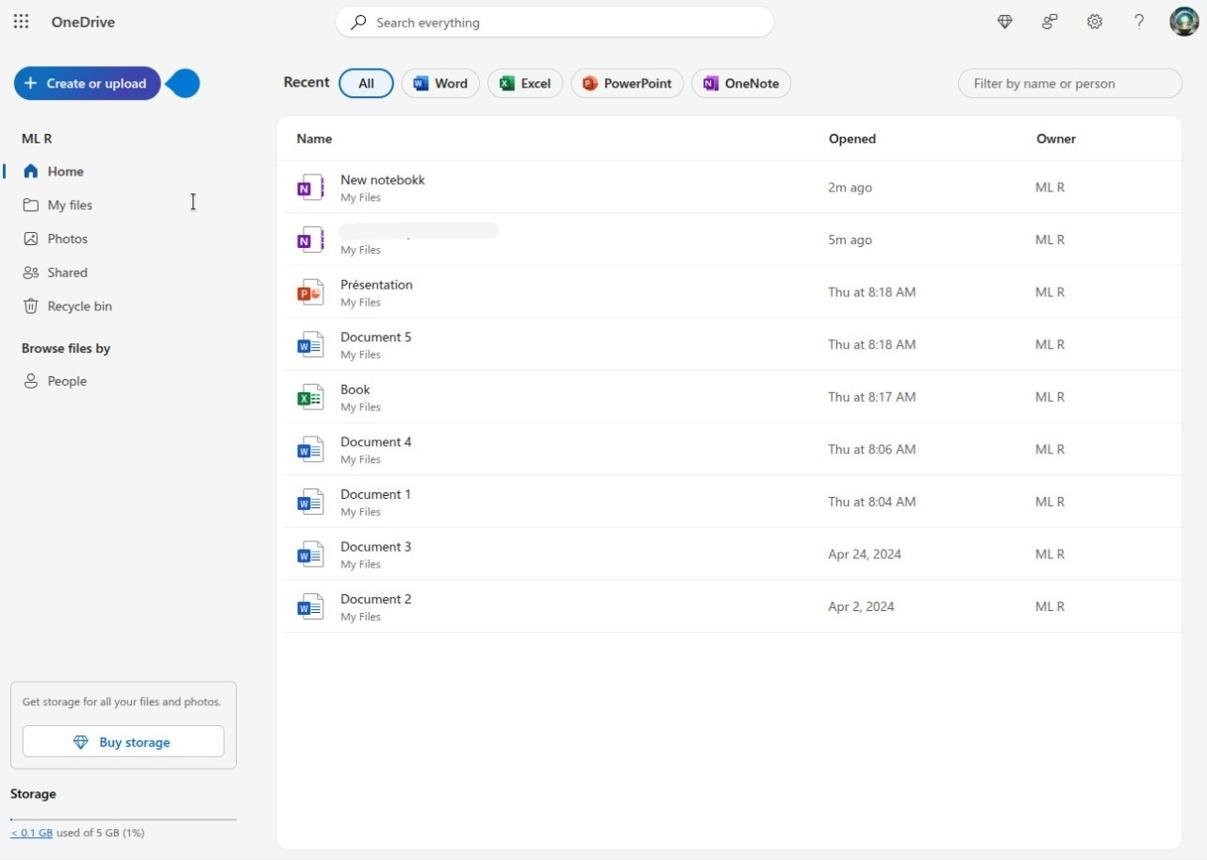
That framing matters. If Microsoft 365 was already in your budget, the storage is effectively free — and 1 TB is far more than most people will ever fill. If you do not want Office, the value proposition largely disappears.
| Free storage | 5 GB |
| Microsoft 365 Personal | $9.99/mo or $99.99/year — 1 TB |
| Microsoft 365 Family | Up to 6 TB — 1 TB each for 6 people |
| Security extras | Personal Vault, ransomware protection |
| Best paired with | Windows plus Word, Excel and Outlook |
Pros
- 1 TB included with Microsoft 365 Personal
- Built into Windows at the file-explorer level
- Family plan covers six people with 1 TB each
- Personal Vault for sensitive files
- Ransomware detection and file recovery
- Strong Office collaboration
Cons
- Value depends on actually using Microsoft 365
- Only 5 GB free — a third of Google’s
- Overkill if you just want a place to put files
3. Dropbox — Best for File Syncing and Sharing
Best for: people who move files between machines and send them to clients all day.
Dropbox is the service that made file syncing mainstream, and syncing is still what it does better than anyone. The workflow has not changed in fifteen years because it did not need to: put a file in the folder, it appears everywhere, share it when you need to.
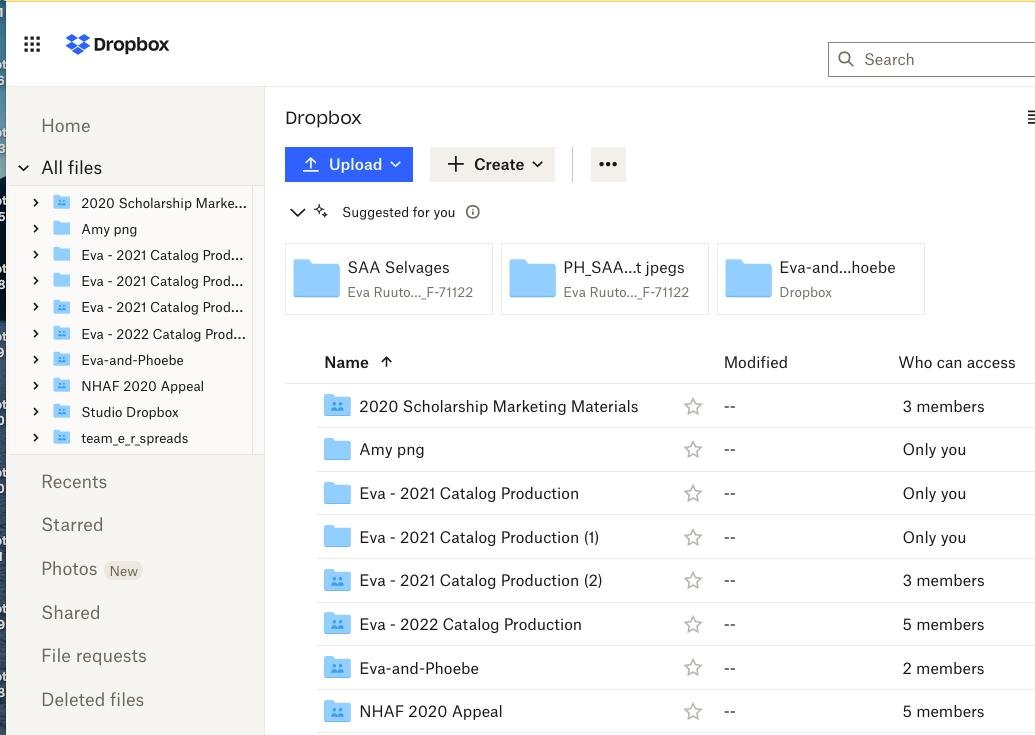
The current Plus plan is $9.99/month billed yearly ($11.99 month to month) for 2 TB for one person, and the Family plan is $16.99/month for up to six users sharing 2 TB. Beyond storage you also get large file transfers, deleted-file recovery, PDF editing, e-signatures and a deep set of third-party integrations.
| Free storage | 2 GB — the smallest here |
| Plus | $9.99/mo billed yearly ($11.99 monthly) — 2 TB, one user |
| Family | $16.99/mo — up to 6 users, 2 TB shared |
| Extras | Large transfers, PDF editing, signatures |
| Best feature | The most dependable sync engine on this list |
Pros
- The most reliable file syncing available
- Sharing and permissions are genuinely simple
- Excellent desktop experience on Windows and macOS
- 2 TB on the entry paid plan
- Family plan for six people
- Large file transfers and signatures included
- Huge library of third-party integrations
Cons
- Only 2 GB free
- Costs more per terabyte than several rivals
- Some features are aimed at professionals, not casual users
4. IDrive — Best for Cloud Backup
Best for: protecting whole computers, not just keeping a synced folder.
IDrive earns its place because it solves a different problem from everything above it. Google Drive and Dropbox are built around a folder you sync. IDrive is built around backup and recovery — imaging your machines so you can get them back when something breaks.
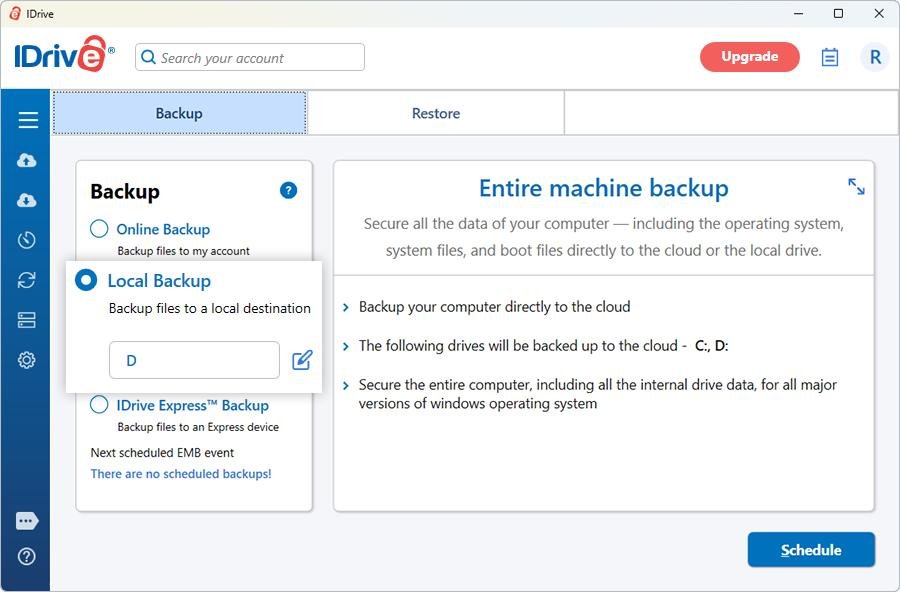
TechRadar currently ranks IDrive first in its 2026 cloud-storage guide, pointing to its backup capabilities, encryption options, capacity and value. Its plans start with a free 10 GB tier, and the Personal plan covers one user across multiple computers with tiers currently running from 5 TB up to 100 TB. Standard pricing starts at $9.99/month for 5 TB, and IDrive runs heavy first-year discounts on annual and multi-year terms.
| Free storage | 10 GB (Basic) |
| Personal from | $9.99/mo for 5 TB at the standard rate |
| Largest tier | Up to 100 TB |
| Devices | Multiple computers on one Personal plan |
| Best feature | Full machine backup and file versioning |
Pros
- Genuine backup, not just sync
- One plan covers multiple computers
- Very large storage tiers available
- 10 GB free
- File versioning and recovery
- Server and business backup options
- Top of TechRadar’s current ranking
Cons
- More complex than Google Drive or Dropbox
- Not designed for document collaboration
- Promotional pricing changes often
- The interface shows its age
5. pCloud — Best for Lifetime Cloud Storage
Best for: people who are tired of paying for storage every single month.
pCloud’s headline feature is the one nobody else on this list really offers: lifetime plans. You pay once and stop thinking about it. Its current pricing lists 500 GB Premium at $4.99/month or $59.88/year and 2 TB Premium Plus at $9.99/month or $119.88/year, while the lifetime page lists 2 TB lifetime at $499 one-time, with larger options above it.
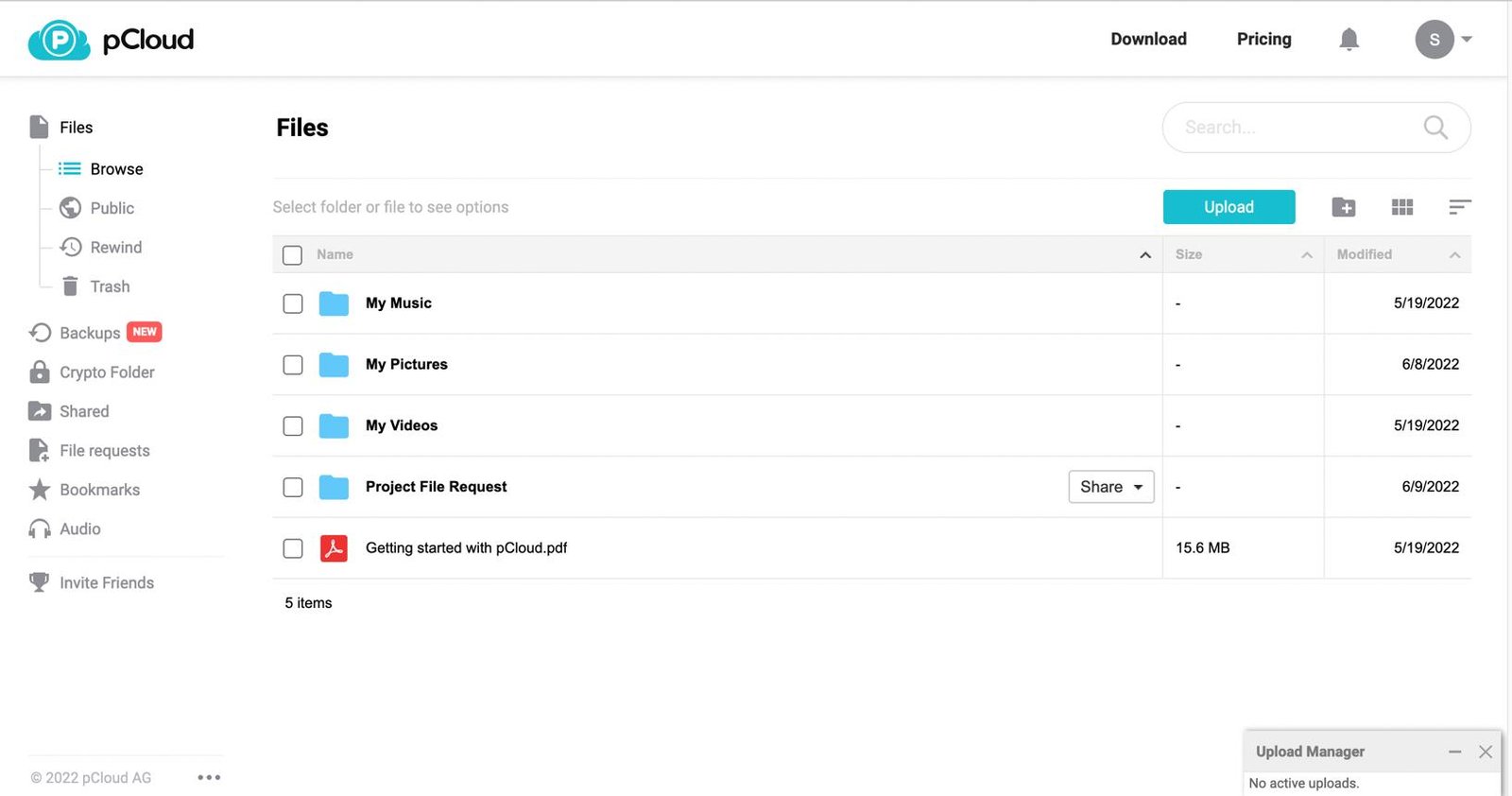
pCloud says it uses TLS/SSL in transit and 256-bit AES encryption, and operates data centres under Swiss privacy law. The maths on lifetime is simple: at $9.99/month, 2 TB costs about $120 a year, so a $499 lifetime plan pays for itself in a bit over four years — assuming the company is still around, which is the real bet you are making.
| Free storage | Up to 10 GB after account steps |
| 500 GB | $4.99/mo or $59.88/year |
| 2 TB | $9.99/mo or $119.88/year |
| 2 TB lifetime | $499 one-time |
| Privacy | Swiss data centres, optional Crypto Folder |
Pros
- Lifetime plans — pay once, not forever
- 2 TB tier at a competitive annual price
- Good for large photo and video libraries
- Swiss privacy jurisdiction
- Works across all major platforms
- Optional zero-knowledge Crypto Folder
Cons
- Lifetime plans need a large payment up front
- Client-side encryption usually costs extra
- Collaboration is nowhere near Google or Microsoft
- You are betting on the company’s longevity
6. Sync.com — Best for Privacy and Secure Sharing
Best for: sharing sensitive files with people outside your organisation.
Sync.com builds everything around privacy and controlled sharing. Where Dropbox optimises for convenience, Sync optimises for who can see what — password-protected links, expiry dates, download limits and permissions that actually hold.
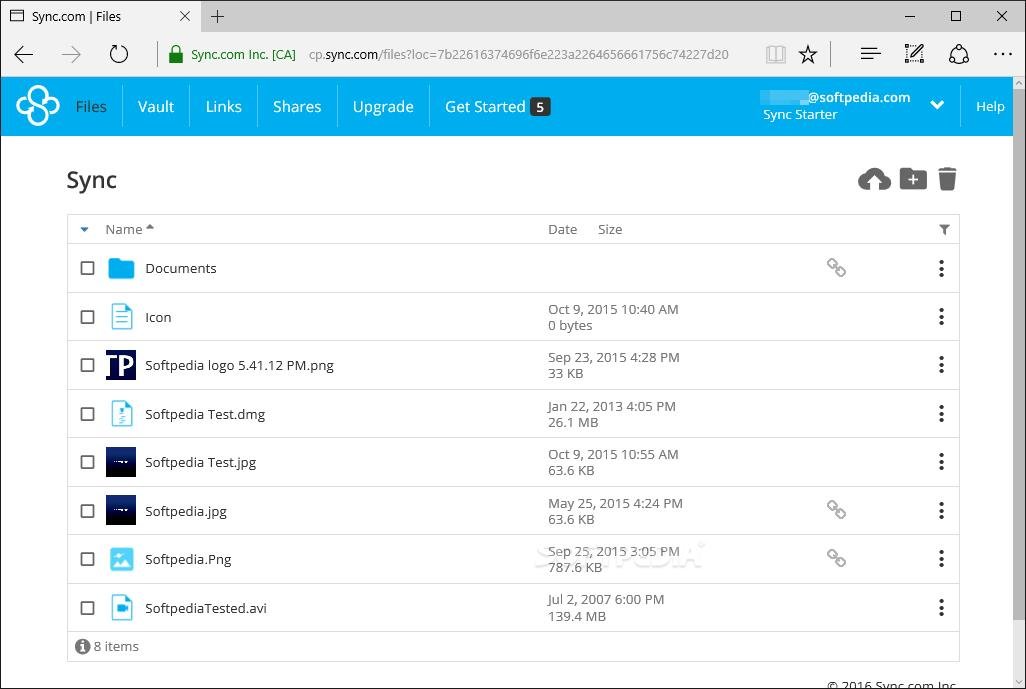
Its individual plans include a free tier, with Personal 1 TB listed at $6/month billed annually and Pro Solo 5 TB at $14/month billed annually. Sync is a Canadian company and leans on that jurisdiction as part of its privacy positioning.
| Free storage | 5 GB |
| Personal 1 TB | $6/mo billed annually |
| Pro Solo 5 TB | $14/mo billed annually |
| Privacy | Zero-knowledge architecture, Canadian jurisdiction |
| Best feature | Granular, auditable sharing controls |
Pros
- Privacy is the product, not a feature
- Zero-knowledge style architecture
- Excellent sharing controls and link permissions
- Solid version history
- 1 TB at a genuinely good annual price
- Strong business tiers
Cons
- No productivity suite to speak of
- Interface is functional rather than pleasant
- Collaboration is thin next to Google Workspace
- Much smaller name than Dropbox
7. Proton Drive — Best for End-to-End Encrypted Storage
Best for: people who want the provider itself to be unable to read their files.
Proton Drive comes from the company behind Proton Mail and Proton VPN, and privacy is the entire point. Proton says Drive uses end-to-end encryption, designed so that Proton cannot access the contents of your files. The free plan includes 5 GB of encrypted storage.
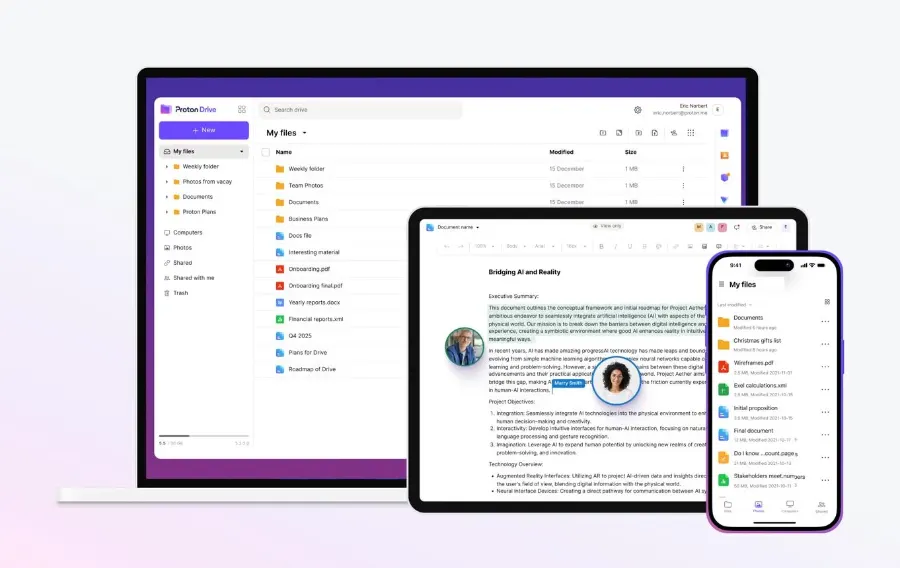
What makes it more than a vault is that Proton has built encrypted document and spreadsheet editors, secure sharing and file-version recovery on top. It is the only privacy-first service here that is seriously trying to replace Google Docs rather than just Google Drive. Paid plans can also bundle Proton Mail, VPN and Pass.
| Free storage | 5 GB, end-to-end encrypted |
| Encryption | End-to-end — Proton cannot read your files |
| Editors | Encrypted documents and spreadsheets |
| Bundles with | Proton Mail, VPN and Pass |
| Guarantee | 30-day money-back on paid plans |
Pros
- True end-to-end encryption
- Encrypted document and spreadsheet editors
- 5 GB free
- Secure sharing and version recovery
- Bundles with Proton Mail, VPN and Pass
- 30-day money-back guarantee
Cons
- Collaboration is younger than Google’s
- Smaller free tier than Google Drive
- Best value only if you use other Proton services
- Some features need a paid plan
8. Icedrive — Best Encrypted Virtual Drive
Best for: people who want cloud storage to behave like a normal drive letter.
Icedrive’s differentiator is its virtual drive. Instead of syncing a folder that duplicates everything locally, it mounts your cloud storage as a drive on your computer — you open files straight from it without filling up your disk.
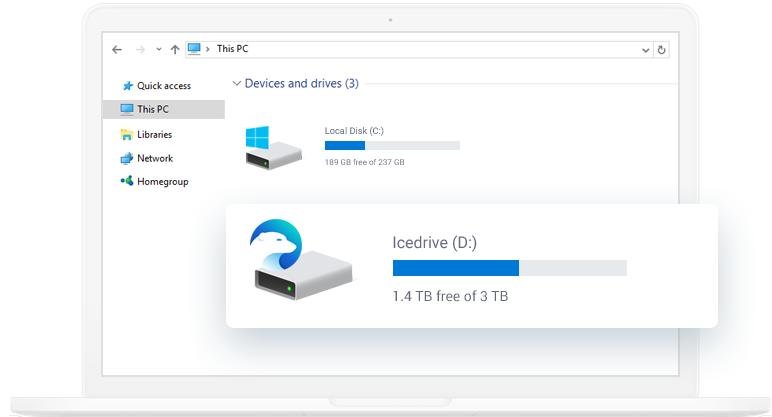
Its plans include a 10 GB free tier, with paid Pro tiers at 2 TB, 4 TB and 6 TB. Icedrive also supports client-side zero-knowledge encryption on supported plans, along with file versioning, public links and password-protected sharing.
| Free storage | 10 GB |
| Paid tiers | 2 TB, 4 TB and 6 TB |
| Standout | Virtual drive — no local disk usage |
| Encryption | Client-side zero-knowledge on supported plans |
| Guarantee | 30-day money-back |
Pros
- Virtual drive keeps your local disk free
- 10 GB free
- Client-side encryption available
- File versioning
- Password-protected sharing links
- Media streaming from the drive
Cons
- Much smaller ecosystem than Google or Microsoft
- Collaboration features are limited
- Encryption depends on which plan you buy
9. Internxt — Best Privacy-Focused Alternative
Best for: privacy users who want the code to be open and audited, not just promised.
Internxt encrypts files before they leave your device, uses zero-knowledge encryption, and says its code is open source and independently audited. That last part is what separates it from services that simply assert strong privacy on a marketing page.
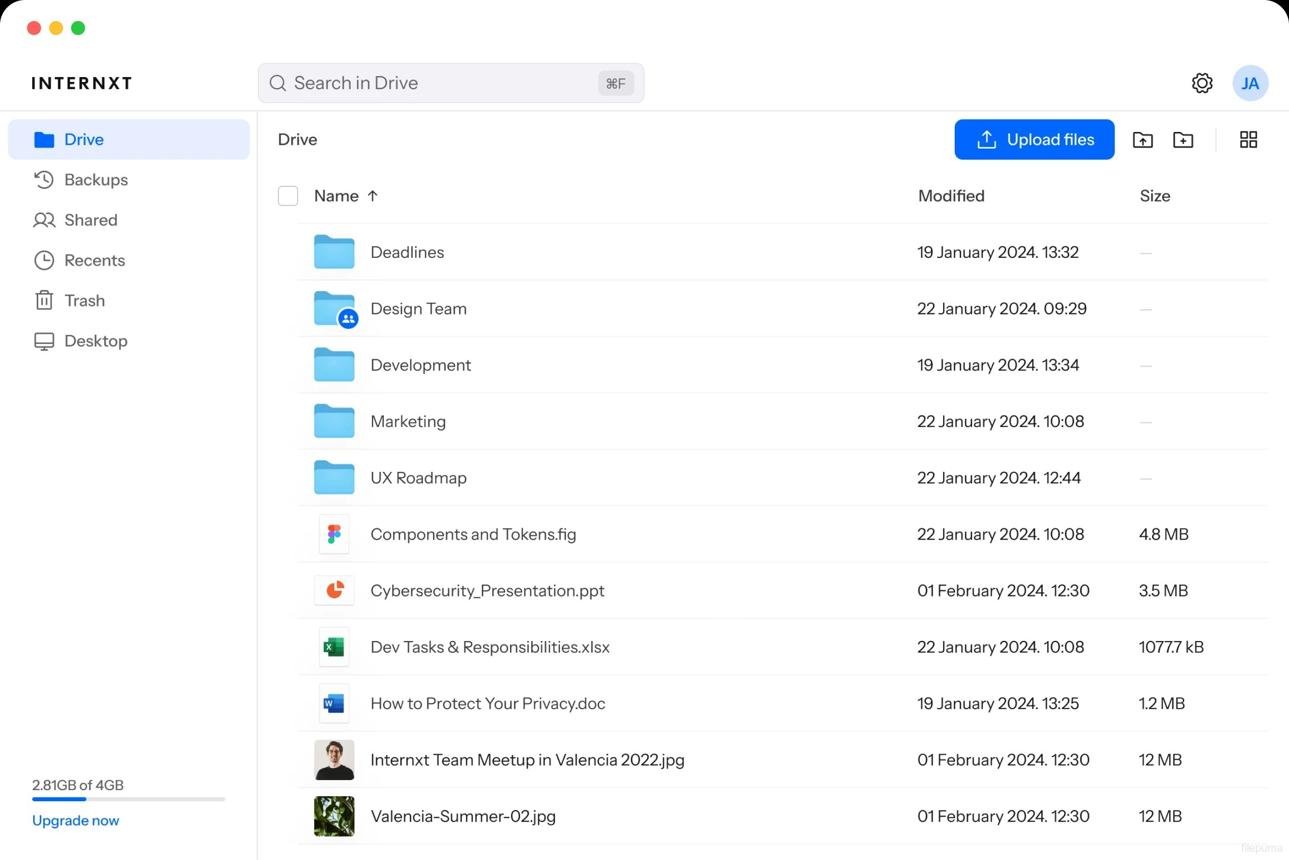
The free plan is small at 1 GB, with paid tiers at 1 TB, 3 TB and 5 TB including lifetime options. It runs on Windows, macOS, Linux, iOS, Android and the web.
| Free storage | 1 GB — smallest on this list |
| Paid tiers | 1 TB, 3 TB and 5 TB |
| Lifetime | Available |
| Encryption | Zero-knowledge, encrypted before upload |
| Transparency | Open source, independently audited |
Pros
- Zero-knowledge encryption by default
- Open source and independently audited
- Lifetime plans available
- Runs on every major platform including Linux
- Clean, modern apps
Cons
- 1 GB free is barely usable
- Small ecosystem and smaller company
- Collaboration is minimal
- Less proven than Proton or Sync
10. MEGA — Best for Large Personal Storage
Best for: big personal media libraries where capacity is the main constraint.
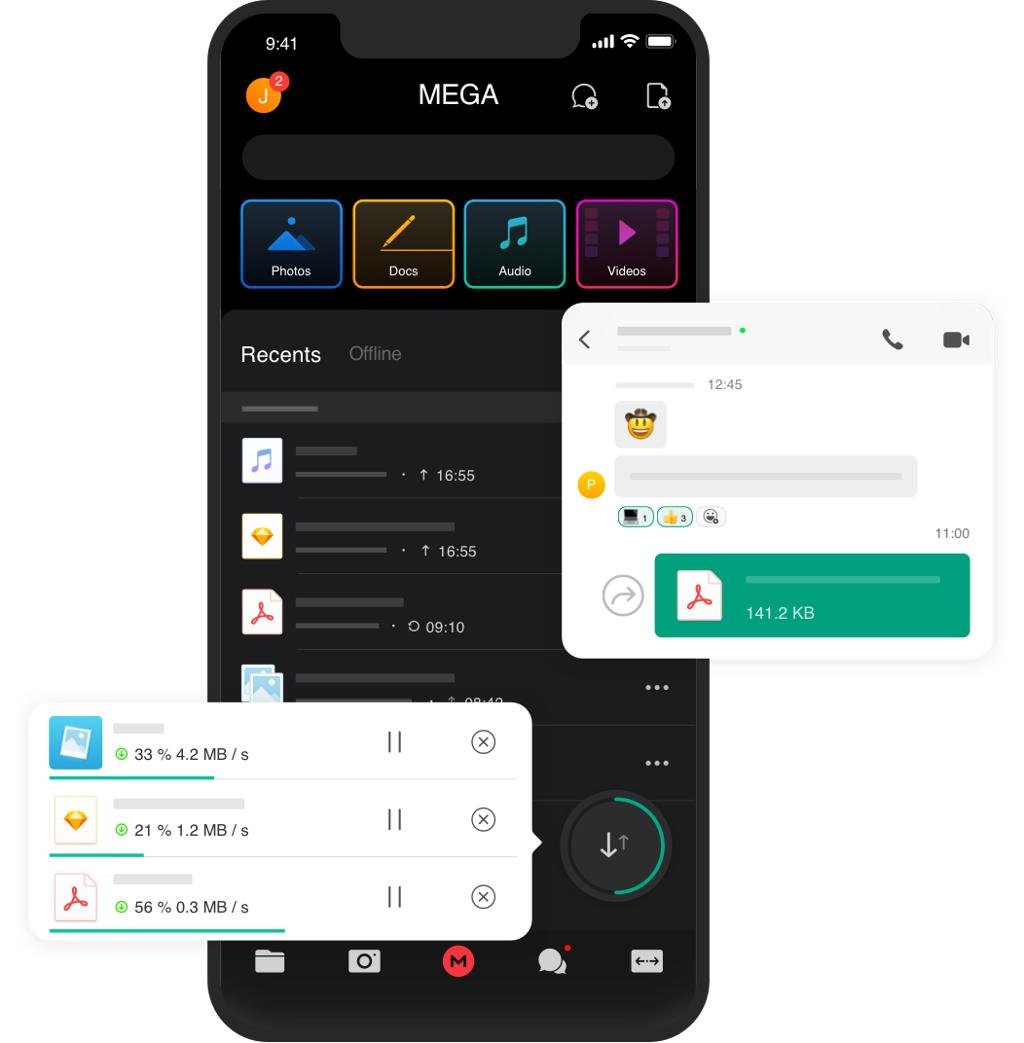
MEGA has been around a long time and pairs encrypted storage with unusually large capacity. Its free tier of 20 GB is the most generous here, which alone makes it worth knowing about if you are storing photos and video rather than documents.
| Free storage | 20 GB — largest free tier here |
| Paid tiers | Large-capacity plans available |
| Encryption | Encrypted storage and transfers |
| Apps | Desktop sync plus iOS and Android |
| Pricing | Check current plans on mega.io |
Pros
- 20 GB free storage
- Large paid capacity options
- Encryption throughout
- Desktop sync and solid mobile apps
- Good for big photo and video collections
Cons
- Interface is busier than rivals
- Collaboration is weak
- Transfer quotas can apply — read the plan details
Best Cloud Storage Services Compared
All ten side by side, on the points that usually decide it.
| Provider | Free storage | Best for | Main strength | Privacy focus |
|---|---|---|---|---|
| Google Drive | 15 GB | Most people | Google ecosystem | Moderate |
| Microsoft OneDrive | 5 GB | Microsoft users | 1 TB with Microsoft 365 | Moderate |
| Dropbox | 2 GB | Sync and sharing | File workflow | Moderate |
| IDrive | 10 GB | Backup | Full machine backup | Strong |
| pCloud | Up to 10 GB | Lifetime storage | Pay-once plans | Strong |
| Sync.com | 5 GB | Secure sharing | Sharing controls | Strong |
| Proton Drive | 5 GB | Privacy | End-to-end encryption | Very strong |
| Icedrive | 10 GB | Encrypted storage | Virtual drive | Strong |
| Internxt | 1 GB | Privacy alternative | Audited zero-knowledge | Very strong |
| MEGA | 20 GB | Large storage | Capacity plus encryption | Strong |
What Is Cloud Storage?
Cloud storage lets you keep files on servers run by a provider instead of only on your own computer or phone. Upload a folder of photos and you can reach them from a laptop, a phone, a tablet, someone else’s computer or just a browser — and depending on the service, share them or work on them with other people.
That is the whole idea. Everything else on this page is about which provider does it in the way that suits you.
Cloud Storage vs Cloud Backup
These two get mixed up constantly, and the difference matters more than almost anything else in this guide.
Cloud storage is built around accessing, syncing and sharing files — Google Drive, Dropbox, OneDrive, pCloud, Sync.com. You use it for documents, photos, work files and shared folders.
Cloud backup is built around protecting data when something goes wrong: your laptop dies, a drive corrupts, you delete something important, the machine is stolen, or malware encrypts your files. IDrive is the clearest example here, because it is designed around backing up whole computers rather than syncing one folder.
How Much Cloud Storage Do You Need?
Start from what you actually have, not from what sounds impressive.
A rough guide
- 100 GB: documents, PDFs, basic photo backup, personal files
- 200–500 GB: large photo collections, phone and tablet backups, freelancers and students
- 1–2 TB: big photo libraries, video, work projects, families, multiple computers
- 5 TB and up: professional photographers, video creators, full machine backups, businesses
Do not automatically buy the biggest plan. If you are currently using 80 GB, jumping to 10 TB is money you will not get back. Check your actual usage first, then leave some headroom for growth.
What Should You Look for in Cloud Storage?
1. Capacity you will actually use
If your laptop holds 600 GB of files that matter, a 100 GB plan is not going to solve anything. Work out the real number before comparing prices.
2. File syncing
Sync means a change on one device shows up on the others. Edit a document on your laptop, and the updated file is on your phone. This is Dropbox’s traditional strength and still the thing it does most reliably.
3. Automatic photo backup
If your phone is full and that is why you are here, automatic camera-roll backup is the feature to check. Google’s ecosystem is the most convenient for this because Drive storage is shared with Google Photos; OneDrive also backs up your camera roll.
4. Sharing controls
Look past the share button: shareable links, password protection, expiry dates, download permissions, folder-level sharing. These matter enormously the moment you share with clients rather than family. Sync.com is the standout here.
5. Version history
Version history lets you roll a file back — after you overwrite a document, delete a section, or a file corrupts. It is the feature nobody thinks about until the day they need it, and the day they need it, it is the only thing that matters.
6. Encryption
Every provider encrypts data, but the architecture differs. Proton Drive and Internxt emphasise end-to-end or zero-knowledge encryption, which is designed so the provider itself cannot read your files. That is stronger privacy, but it comes with trade-offs around collaboration and account recovery — if you forget your credentials, there is often no one who can let you back in.
Is Cloud Storage Safe?
A reputable cloud storage service is generally a safe place for important files, but nothing online is risk-free.
Look for encryption, two-factor authentication, sensible account security, version history, recovery options, controlled sharing and a privacy policy that says something specific. Then do your part: a strong unique password and two-factor authentication on the account protect you from the failure mode that actually happens most often, which is someone getting into your account rather than someone breaking the encryption.
And do not let cloud storage be the only copy of anything irreplaceable.
Is Cloud Storage a Backup?
Not automatically — and this catches people out.
If you drag a file into a synced folder and later delete it, that deletion can sync everywhere too. Sync propagates mistakes just as faithfully as it propagates work.
For anything critical, use a 3-2-1 approach: three copies of the data, on two different types of storage, with one copy kept somewhere else. Cloud storage can be one of those three — it should rarely be all of them.
Best Cloud Storage by Use Case
Best for photos
For most people it is Google Drive, because Drive storage is shared with Google Photos and the two work as one thing. OneDrive is the equivalent if you are on Microsoft 365. If you want your photo library encrypted so the provider cannot see it, Proton Drive is the pick instead.
Best for families
Microsoft 365 Family is hard to beat if the household already uses Word and Excel — up to 6 TB total, 1 TB each for six people, plus the Office apps. Google One lets you share your storage with up to five other people, and Dropbox Family covers six users sharing 2 TB.
Best for privacy
Proton Drive first, for end-to-end encryption plus usable editors. Then Internxt for open-source, audited zero-knowledge storage, Sync.com for privacy-focused sharing, and Icedrive for client-side encryption with a virtual drive.
Best for business
This follows whatever software you already run. Google Workspace if your team lives in Gmail, Docs and Meet. Microsoft 365 if it lives in Outlook, Excel and Teams. Dropbox when file syncing and client sharing are the core of the work. Sync.com or Proton Drive when confidentiality is a requirement rather than a preference.
Most free storage
MEGA leads with 20 GB, followed by Google Drive at 15 GB — though Google’s is shared with Gmail and Photos, so the usable amount is often lower in practice. IDrive, Icedrive and pCloud sit at 10 GB, Proton Drive and Sync.com at 5 GB, Dropbox at 2 GB and Internxt at 1 GB.
Is lifetime storage worth it?
It can be. pCloud and Internxt both offer lifetime plans, and the maths is simple: divide the one-time price by what the annual plan costs. pCloud’s 2 TB lifetime at $499 against $119.88/year breaks even after roughly four years.
The part the maths cannot tell you is whether the company will still exist then. A lifetime plan is a bet on the provider’s longevity, so weigh that alongside capacity, whether future features are included, and whether the service actually covers your backup needs.
Cloud Storage Pricing in 2026
Current examples straight from the providers’ own pricing pages.
| Provider | Example plan | Current price |
|---|---|---|
| Google One | 100 GB | $1.99/mo |
| Sync.com | Personal 1 TB, annual | $6/mo |
| pCloud | 500 GB | $4.99/mo |
| Microsoft 365 Personal | 1 TB + Office apps | $9.99/mo |
| Dropbox Plus | 2 TB | $9.99/mo (yearly) |
| pCloud Premium Plus | 2 TB | $9.99/mo |
| IDrive Personal | 5 TB | $9.99/mo |
| pCloud lifetime | 2 TB, one-time | $499 |
Google Drive vs OneDrive vs Dropbox
For most readers the real decision is between these three.
| Feature | Google Drive | OneDrive | Dropbox |
|---|---|---|---|
| Free storage | 15 GB | 5 GB | 2 GB |
| Ecosystem | Microsoft | Independent | |
| Office apps | Docs, Sheets, Slides | Word, Excel, PowerPoint | Integrations only |
| Photos | Google Photos | OneDrive Photos | Basic |
| Collaboration | Excellent | Excellent | Very good |
| Syncing | Very good | Excellent on Windows | Excellent |
| Best for | Most people | Microsoft 365 users | File workflows |
Choose Google Drive if you live in Gmail and Google Docs. Choose OneDrive if you already pay for Microsoft 365. Choose Dropbox if syncing and sharing are the job.
Our Cloud Storage Ranking for 2026
Weighing capacity, pricing, syncing, backup, privacy, collaboration and value, here is how the best cloud storage services rank:
The order we would recommend them in
- 1. Google Drive — best overall for most people
- 2. Microsoft OneDrive — best for Microsoft 365 users
- 3. Dropbox — best for syncing and sharing
- 4. IDrive — best for backup
- 5. pCloud — best lifetime storage
- 6. Sync.com — best for secure sharing
- 7. Proton Drive — best end-to-end encrypted storage
- 8. Icedrive — best encrypted virtual drive
- 9. Internxt — best privacy alternative
- 10. MEGA — best for large personal storage
Our Verdict
Google Drive is the best cloud storage service for most people in 2026. Not because it has the most storage or the strongest encryption — it has neither — but because 15 GB free, Google Photos, Gmail, Docs, Sheets, easy sharing and broad device support add up to less friction than anything else here.
Several situations point elsewhere. OneDrive is better value if Microsoft 365 is already on your card. Dropbox is better if syncing and client sharing are the actual job. IDrive is the right tool when you need backup and recovery rather than a synced folder. pCloud makes sense if you would rather pay once than forever. Sync.com and Proton Drive are the picks when privacy is a requirement, and Icedrive or Internxt when you want encryption with a particular twist — a virtual drive or audited open source.
The best of the best cloud storage services is not the one with the most terabytes. It is the one that matches how you store, reach, share and protect your files.
Still deciding? Start with the free tier of Google Drive or MEGA and see what you actually use in a month. Upgrade when you hit a limit that genuinely gets in your way — not before.
Browse more tech guides →Frequently Asked Questions
What is the best cloud storage service in 2026?
Among the best cloud storage services we compared, Google Drive is our overall pick for most people because of its 15 GB free tier and deep integration with Gmail, Google Photos and Google Docs.
Is Google Drive better than OneDrive?
Not for everyone. Google Drive suits people already using Google’s services, while OneDrive is often better value if you pay for Microsoft 365, since the Personal plan bundles 1 TB with Word, Excel, PowerPoint and Outlook.
Is Dropbox still worth it in 2026?
Yes, if syncing and sharing are your priority. Dropbox’s sync engine and sharing controls remain the most dependable here, and the Plus plan gives one person 2 TB. If you just want cheap gigabytes, other services offer more per dollar.
What is the best free cloud storage?
MEGA offers the largest free tier at 20 GB, with Google Drive next at 15 GB. Google’s allowance is shared with Gmail and Photos though, so how much you can really use depends on how busy your inbox is.
What is the best cloud storage for photos?
Google Drive, because storage is shared with Google Photos and the two behave as a single library. OneDrive is the equivalent for Microsoft users, and Proton Drive is the choice if you want photos encrypted end to end.
What is the best cloud storage for backup?
IDrive. It is designed around backing up entire computers and restoring them, rather than syncing one folder, and it covers multiple machines on a single Personal plan.
What is the most private cloud storage?
Proton Drive and Internxt. Proton Drive uses end-to-end encryption so Proton cannot read your files, and Internxt combines zero-knowledge encryption with open-source, independently audited code.
Is cloud storage safe?
Reputable services are generally safe, but the weak point is usually the account rather than the encryption. Use a strong unique password and two-factor authentication, and keep a separate copy of anything irreplaceable.
Can cloud storage replace an external hard drive?
Not entirely. They fail in different ways — a drive can die, an account can be locked out. Using both gives you far better protection than either alone.
How much cloud storage do I need?
For documents and everyday photos, 100–500 GB is usually plenty. Heavy photo and video users want 1–2 TB. Professionals with large media libraries or full machine backups need 5 TB or more.
Is lifetime cloud storage worth it?
It can be if you will use the service for years. pCloud and Internxt both offer lifetime plans. Divide the one-time cost by the annual price to find the break-even point, then decide how confident you are that the company will still be running by then.
Which cloud storage is best for families?
Microsoft 365 Family, if the household uses Office. It provides up to 6 TB total with 1 TB each for six people, plus the apps. Google One and Dropbox Family are the alternatives.
Is cloud storage the same as a backup?
No. Sync copies changes everywhere, including deletions and mistakes. A backup is designed so you can recover an earlier state. For important data, follow a 3-2-1 approach and treat cloud storage as one copy, not all of them.
Can I use more than one cloud storage service?
Yes, and plenty of people should. A common setup is Google Drive for everyday documents, IDrive for machine backups and pCloud or MEGA for a large media archive. Just avoid spreading things so thin that you cannot remember where anything lives.
How We Compared the Best Cloud Storage Services
To be clear about what this guide is: it is a research-based comparison, not a speed-test lab. We have not personally benchmarked upload and download performance for all ten services, and we are not going to imply otherwise.
What we did was work from each provider’s own current documentation and pricing pages, capture what those pages showed in September 2026, and weigh the services against a consistent set of questions:
- Free storage — is it usable, and is it shared with other services?
- Paid capacity and pricing — the entry rate, the commitment, and what it renews at
- Syncing — how reliably changes propagate across devices
- Backup — whether it can actually restore a machine, or only a folder
- Sharing — links, permissions, passwords and expiry
- Collaboration — real-time editing and document tools
- Version history — how far back you can recover
- Privacy and encryption — who holds the keys, and has it been audited?
- Device support — desktop, mobile and web coverage
- Value — what you get for the money over a realistic period
We also reviewed current independent evaluations. TechRadar’s 2026 cloud-storage guide, for example, assesses providers on performance, security, usability, pricing, platform compatibility, support and features. Where performance figures come from another publication, we attribute them to that publication rather than presenting them as our own measurements. More about our process is in how we review, and about the site on our about page.
Disclosure: some links on this page are affiliate links, and Etemora may earn a commission if you buy through them at no extra cost to you. Affiliate compensation does not determine which service receives the best recommendation. See our disclaimer and privacy policy, or contact us with a correction.
Final Recommendations
The short version — the best cloud storage services of 2026, matched to the job you actually need one to do.
Etemora’s cloud storage shortlist
- Want the easiest choice? Google Drive
- Already use Word and Excel? Microsoft OneDrive
- Share files with clients daily? Dropbox
- Need to protect whole computers? IDrive
- Hate monthly subscriptions? pCloud lifetime
- Sharing confidential files? Sync.com
- Want the provider locked out of your files? Proton Drive
- Laptop running out of disk space? Icedrive
- Want audited open-source privacy? Internxt
- Storing a huge media library? MEGA
If you are building a wider setup, our guides to the best password managers and best VPN services cover the other two pieces most people need.
Editor’s note
Cloud storage plans, free-tier limits and promotional pricing change frequently, and long-term deals usually renew at a higher rate. Every figure here was captured in September 2026 from each provider’s own pricing or documentation page and is a comparison snapshot, not a guarantee. We also do not present other publications’ speed tests as our own measurements. Always confirm current terms, including the renewal price, before subscribing.
Related articles you may like
 Tech & SoftwareWix vs Squarespace (2026): Pricing, Fees and Which to Choose
 SEO & MarketingWhat Is Email Marketing? Complete Beginner Guide 2026
 SEO & MarketingWhat Is SEO? A Simple Beginner’s Guide for 2026
 SEO & MarketingBest Local SEO Tools: 7 Proven Picks for 2026
 Tech & SoftwareWhat Is a Website Builder? The Ultimate 2026 Guide
 Tech & SoftwareBest AI Image Generators in 2026