
Free PDF Tools
Compress, merge, split and convert PDFs to JPG or PNG — and turn images into a PDF. Everything runs in your browser, so your files are never uploaded.
- Files never uploadedruns in your browser
- 5 tools in onecompress · merge · split · convert
- 100% freeno sign-up, no watermark

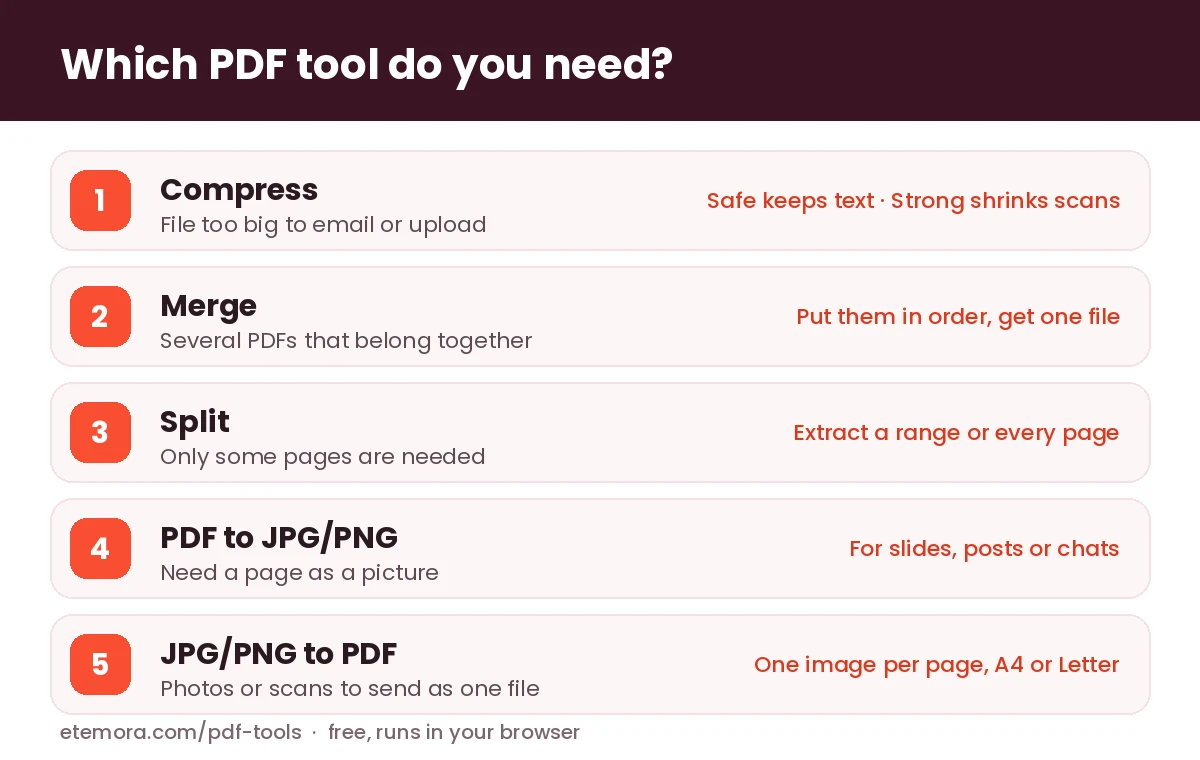
Make a PDF smaller so it is easier to email or upload.
Add two or more PDFs, put them in order with the arrows, then merge.
Your files are processed inside your browser and are never uploaded to our server. The first time you use the tool, your browser downloads the free open-source PDF libraries it needs (less than 1 MB).
How it works
Every PDF job in three quick steps.
- Pick a tool
Compress, Merge, Split, PDF to images or images to PDF.
- Add your files
Choose or drop them. They stay on your device.
- Download the result
Your new PDF, ZIP or images are ready in seconds.
How to compress a PDF
Open the Compress tab and add your PDF. Safe mode repacks the file: it rewrites the PDF’s internal structure more compactly and keeps every word selectable and searchable. On PDFs that were already saved efficiently, the saving can be small, and the tool tells you honestly when it could not make the file smaller.
Strong mode redraws every page as a JPG image at the resolution you choose and builds a new PDF from those images. That is usually the only way to shrink scanned documents and photo-heavy PDFs a lot. The trade-off: the text becomes part of the picture, so you can no longer select, search or copy it. Use Strong for scans you only need to read or print, and keep your original for anything you still need to edit.
A common reason to compress is email. Gmail, for example, allows up to 25 MB of attachments per message and turns anything bigger into a Google Drive link, according to Google’s own help page. Many job portals and government forms set even lower upload limits, so check the limit before you pick a quality level.
How to merge PDF files
Open Merge and add two or more PDFs — you can pick them in one go or add them one after another. Use the arrow buttons to put them in the right order, then press Merge PDFs. The pages are copied into one new file exactly as they are, so text stays selectable and nothing is re-compressed.
Merging is handy for job applications (CV, cover letter and certificates in one file), invoices with receipts, or scanned pages that came out as separate files. If you are sending your work to clients, our guide on how to start freelancing covers the documents most clients ask for.
How to split a PDF or extract pages
Open Split and add one PDF. Choose Extract pages and type the pages you want, for example 1-3, 5, 8, to get a single new PDF with just those pages in that order. You can also write 10- to mean “page 10 to the end”.
Choose Every page as its own PDF to get a ZIP file with one PDF per page, named in page order. Like merging, splitting copies the pages without re-compressing them, so quality does not change.
How to convert PDF to JPG or PNG — and back
PDF to JPG/PNG saves every page as an image. JPG gives smaller files and suits photos and slides; PNG keeps text edges crisp but produces bigger files. Standard (150 DPI) is a good middle ground for screens and chat apps; pick High (220 DPI) if you will zoom in or print. With more than one page you get a ZIP, and you can also save single pages from the preview grid.
JPG/PNG to PDF does the opposite: add photos or scans, put them in order and get one PDF with one image per page. Choose Same as each image to keep each page the size of its picture, or A4 / US Letter for printing, with an optional margin. Landscape images get a landscape page automatically.
Need editable text rather than images? Use our free PDF to Word converter instead. To shrink photos before you put them in a PDF, try the image compressor.
Is it safe? How these PDF tools work
Everything happens inside your browser. When you press a button, the page loads well-known open-source libraries — pdf-lib (MIT licence) to build and edit PDFs, Mozilla’s PDF.js (Apache-2.0) to draw pages as images, and JSZip (MIT) to package several files — from the public cdnjs network. Your PDF itself is never sent to our server or to anyone else, and nothing is stored after you close the page.
A few honest limits: password-protected PDFs cannot be opened until you remove the password in your PDF reader; very large files (hundreds of pages or files over roughly 100–200 MB) depend on your device’s memory and may be slow on older phones; and fillable form fields or digital signatures may not survive Strong compression, because those pages become images. PDF itself is an open international standard, ISO 32000, which is why files made here open in any PDF reader.
If you handle a lot of documents at work, our round-up of the best AI tools for work looks at assistants that can also summarise and search long PDFs.
PDF tools: frequently asked questions
Are these PDF tools really free?
Yes. There is no sign-up, no watermark and no daily limit. The work is done by your own browser rather than a paid server, so there is nothing to charge for.
Are my PDFs uploaded anywhere?
No. Your files are read and processed inside your browser tab and never leave your device. The only things downloaded are the free PDF libraries the tool needs, and your browser can reuse them next time.
Why did my PDF only get a little smaller?
Safe mode can only repack what is already there. If the PDF was saved efficiently, or is mostly text, there is little left to remove. For scans and photo-heavy PDFs, switch to Strong mode and pick a lower image quality.
Will compressing change how my PDF looks?
Safe mode does not change how pages look. Strong mode turns each page into a JPG image, so very small text can look softer at the lowest quality setting, and text can no longer be selected. Check the result before you delete your original.
Can I merge or split password-protected PDFs?
Not directly. Open the file in your PDF reader, remove the password (you will need to know it), save a copy, then use that copy here.
Does it work on my phone?
Yes, it works in modern mobile browsers such as Chrome and Safari. Very large PDFs are limited by your phone’s memory, so for big jobs a computer is faster.
More free tools: see all Etemora tools.
Other free tools
Guides related to this tool
 FreelancingHow to Start Freelancing: 7 Proven Steps in 2026
 AI ToolsBest AI Tools for Work in 2026: 10 Options Compared
 FreelancingUpwork Fees Explained: Complete 2026 Guide