
KDP Book Resizer
Resize your book interior PDF to common KDP trim sizes and run a practical print preflight check before uploading.
- Runs in your browserno server step
- 100% freeno sign-up
%22%2F%3E%3Cpath%20d%3D%22M120%2060h150a20%2020%200%200%201%2020%2020v190H140a20%2020%200%200%201-20-20z%22%20fill%3D%22url(%23t2a8A)%22%2F%3E%3Cpath%20d%3D%22M140%20250h150v20H140a10%2010%200%200%201%200-20z%22%20fill%3D%22url(%23t2a8W)%22%2F%3E%3Crect%20x%3D%22120%22%20y%3D%2260%22%20width%3D%2224%22%20height%3D%22200%22%20rx%3D%228%22%20fill%3D%22url(%23t2a8B)%22%2F%3E%0A%3Crect%20x%3D%22166%22%20y%3D%2296%22%20width%3D%2298%22%20height%3D%2210%22%20rx%3D%225%22%20fill%3D%22%23FF8A5B%22%2F%3E%3Crect%20x%3D%22166%22%20y%3D%22116%22%20width%3D%2272%22%20height%3D%228%22%20rx%3D%224%22%20fill%3D%22%23C45A74%22%2F%3E%3Crect%20x%3D%22176%22%20y%3D%22150%22%20width%3D%2278%22%20height%3D%2270%22%20rx%3D%2210%22%20fill%3D%22none%22%20stroke%3D%22%23FFB08F%22%20stroke-width%3D%223%22%20stroke-dasharray%3D%227%206%22%2F%3E%0A%3Cg%3E%3Crect%20x%3D%22304%22%20y%3D%2260%22%20width%3D%2240%22%20height%3D%22210%22%20rx%3D%2210%22%20fill%3D%22url(%23t2a8D)%22%2F%3E%3Crect%20x%3D%22304%22%20y%3D%2272%22%20width%3D%2224%22%20height%3D%224%22%20fill%3D%22%238A4A00%22%2F%3E%3Crect%20x%3D%22304%22%20y%3D%2292%22%20width%3D%2216%22%20height%3D%224%22%20fill%3D%22%238A4A00%22%2F%3E%3Crect%20x%3D%22304%22%20y%3D%22112%22%20width%3D%2224%22%20height%3D%224%22%20fill%3D%22%238A4A00%22%2F%3E%3Crect%20x%3D%22304%22%20y%3D%22132%22%20width%3D%2216%22%20height%3D%224%22%20fill%3D%22%238A4A00%22%2F%3E%3Crect%20x%3D%22304%22%20y%3D%22152%22%20width%3D%2224%22%20height%3D%224%22%20fill%3D%22%238A4A00%22%2F%3E%3Crect%20x%3D%22304%22%20y%3D%22172%22%20width%3D%2216%22%20height%3D%224%22%20fill%3D%22%238A4A00%22%2F%3E%3Crect%20x%3D%22304%22%20y%3D%22192%22%20width%3D%2224%22%20height%3D%224%22%20fill%3D%22%238A4A00%22%2F%3E%3Crect%20x%3D%22304%22%20y%3D%22212%22%20width%3D%2216%22%20height%3D%224%22%20fill%3D%22%238A4A00%22%2F%3E%3Crect%20x%3D%22304%22%20y%3D%22232%22%20width%3D%2224%22%20height%3D%224%22%20fill%3D%22%238A4A00%22%2F%3E%3Crect%20x%3D%22304%22%20y%3D%22252%22%20width%3D%2216%22%20height%3D%224%22%20fill%3D%22%238A4A00%22%2F%3E%3C%2Fg%3E%0A%3Cg%20stroke%3D%22%23FF6A45%22%20stroke-width%3D%228%22%20stroke-linecap%3D%22round%22%20stroke-linejoin%3D%22round%22%20fill%3D%22none%22%3E%3Cpath%20d%3D%22M60%20110v110M44%20126l16-16%2016%2016M44%20204l16%2016%2016-16%22%2F%3E%3C%2Fg%3E%3C%2Fsvg%3E)
Upload your interior PDF
This tool is designed for book interior PDFs. Cover files require separate dimensions and preparation, and are not handled here.
Your PDF never leaves your device. Everything — reading, resizing and preflight — happens in your browser using JavaScript. Nothing is uploaded to Etemora and no copy is stored on any server.
Your file
Choose your KDP format and trim size
Trim size is the finished size of the printed page, after the paper is cut.
A custom size is not necessarily accepted by KDP. Check it against the current list before you publish.
Trim-size availability can vary by KDP print format and marketplace. The sizes listed here were taken from Amazon's published trim size guidance; verify the final file in KDP before publishing.
Set bleed
Bleed is only needed when artwork or images run all the way to the edge of the page. If your interior has ordinary margins and no edge-to-edge artwork, choose No bleed.
Adding bleed does not create edge-to-edge artwork. It makes the page larger so existing full-page artwork can run past the trim line. If your pages do not already have artwork reaching the edge, turning bleed on simply adds blank space around your content. Adding bleed also does not by itself make a file KDP-compliant.
Choose how the content is resized
Margins are measured inside the trim area. Inside is the spine edge and alternates automatically — left on right-hand pages, right on left-hand pages. Safe margins depend on page count, binding, trim size and KDP's requirements. Use the preflight warnings as guidance and verify the final file in KDP.
Check the numbers
Resize and run the preflight check
KDP Preflight
This check is a technical preflight, not an official KDP approval. Etemora's preflight checks are provided as a practical file-quality guide and do not guarantee acceptance by Amazon KDP. Always review the final PDF against the latest KDP specifications before publishing.
Download
Your original file is untouched — this is a new PDF created in your browser.
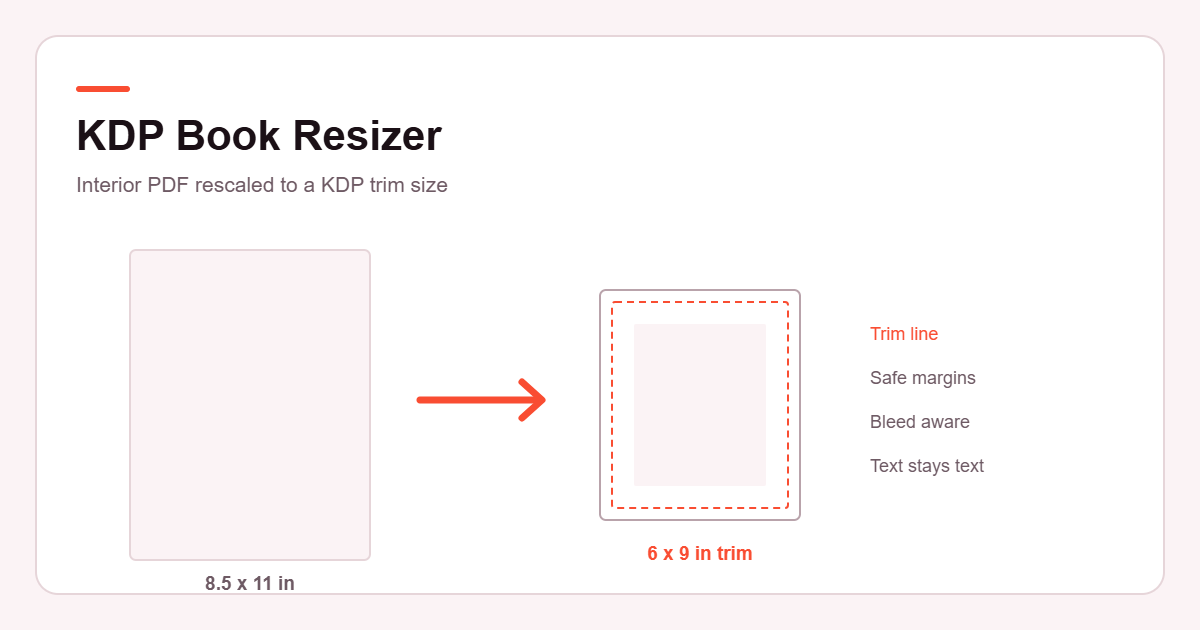
Free KDP Book Resizer
The Etemora KDP Book Resizer takes a book interior PDF you already have and rebuilds it at a different trim size. The KDP Book Resizer is what you reach for when your manuscript was typeset at 8.5 × 11 inches but you want to publish at 6 × 9, when a printer has asked for a page size your file does not match, or when you simply want to see what your interior looks like at a smaller trim before committing to it.
It is free, there is no sign-up, and the work happens in your browser. Your manuscript is never uploaded to Etemora.
One thing worth being clear about up front: resizing is not the same as reflowing. The KDP Book Resizer scales each finished page as a unit, so your line breaks, page breaks and page count stay exactly as they are. If you want the text to re-flow into a new page size — different line breaks, a different number of pages — that is a job for the program you wrote the book in, not for a PDF resizer.
How to Resize a Book for KDP
- Upload your interior PDF. The KDP Book Resizer reads the real page count, page dimensions and rotation from the file itself.
- Pick your product type and trim size. Paperback and hardcover support different sizes, so the list changes with your choice.
- Decide about bleed. Only turn it on if artwork already runs to the edge of your pages.
- Choose how the content sits on the new page and set margins if you want them.
- Check the numbers in the preview — original size, trim size, final page size and the scale factor being applied.
- Resize, then read the preflight results.
- Download your new PDF and check it in a PDF reader before uploading it to KDP.
What KDP Trim Size Should I Choose?
If you have no strong reason to pick something else, 6 × 9 inches is the safe answer for most books. Amazon describes it as the most common trim size for paperbacks in the US, it suits novels, memoirs, business books and most non-fiction, and readers are used to it.
Beyond that, a few rules of thumb:
- Fiction and memoir — 5 × 8, 5.25 × 8 or 5.5 × 8.5 read as more intimate and are common for novels.
- General non-fiction and business — 6 × 9 is the default for good reason.
- Textbooks, workbooks and manuals — 7 × 10, 8 × 10 or 8.5 × 11 give room for diagrams, exercises and wide tables.
- Photo books and art books — the square sizes, 8.25 × 8.25 and 8.5 × 8.5, are worth considering.
Two practical points. Larger trim sizes cost more to print, which eats into your royalty. And a bigger page with the same amount of text means fewer pages, which changes the spine width — so if you have already made a cover, changing trim size means remaking it. Our free KDP Cover Size Calculator works out the new cover size and spine width.
KDP Trim Sizes Explained
The table below lists the trim sizes in Amazon's published guidance at the time of writing, and which product types they were listed for. KDP changes its specifications from time to time, so treat this as a starting point rather than a permanent rule and confirm in your KDP account before publishing.
| Trim size (in) | Millimetres | Paperback | Hardcover |
|---|
Paperbacks are listed as supporting 24 to 828 pages. Hardcovers have a narrower range of 75 to 550 pages and only five trim sizes. Amazon also treats anything wider than 6.12 inches or taller than 9 inches as a "large" trim size, which is priced differently.
What Is Bleed in KDP Printing?
Printing presses cut slightly imprecisely. If you want a photograph or a block of colour to reach the very edge of a finished page, you cannot draw it to exactly the edge — a millimetre of drift would leave a thin white sliver. Instead you make the artwork run past the edge, and the cut removes the excess. That overhang is called bleed.
KDP asks for 0.125 inches (3.2 mm) of bleed on the edges where artwork reaches the edge. Importantly, that is the top, the bottom and the outside edge — never the spine, because nothing is trimmed there. Amazon's own worked example is a 6 × 9 book, which is set up as a 6.125 × 9.25 inch page when it uses bleed: a quarter inch taller, but only an eighth of an inch wider.
Most interiors do not need bleed at all. A novel that is nothing but text has margins on every page, so there is nothing to bleed. Turn bleed on only if you actually have full-page images, and remember that switching it on in the KDP Book Resizer makes the page bigger — it cannot invent artwork to fill the new space.
What Is the Difference Between Trim Size and Page Size?
These get used interchangeably and it causes real problems, so it is worth separating them.
- Trim size is the size of the finished book in your hands — 6 × 9 inches, say. It is what you select when you publish.
- Page size is the size of each page in the PDF you upload.
With no bleed, the two are the same: a 6 × 9 book is a 6 × 9 PDF. With bleed, they differ, because the PDF has to include the overhang that will be cut away. Following KDP's rule, a 6 × 9 book with bleed is a 6.125 × 9.25 PDF. The KDP Book Resizer always shows both figures so you can see exactly what is being produced.
How Does the KDP Preflight Check Work?
After the resize, the KDP Book Resizer re-opens the PDF it has just created and inspects it. Nothing in the results panel is a canned message — every line is the outcome of an actual measurement of the output file.
It checks that the new PDF parses cleanly, that the page count matches your original, that every page really is the size you asked for, that orientation is consistent, that page geometry matches your trim and bleed settings, and that text survived as text rather than being flattened into images. It samples pages to estimate the effective resolution of raster images at their new size, looks for pages that appear to be blank, and compares your margins against KDP's published minimums for your page count.
Results are grouped as pass, warning, error or information, and each one is labelled in words as well as colour. A warning is not necessarily a problem — a blank page between chapters is perfectly normal — but it is something worth looking at before you upload.
How Can I Prepare a PDF for KDP?
- Export as PDF from your writing software rather than printing to PDF where you can — you usually get better text and image quality.
- Embed your fonts. Most modern exporters do this automatically, but a file with missing fonts can be rejected or print incorrectly.
- Use images at a sensible resolution. Around 300 PPI at final printed size is the usual target for print.
- Give the spine enough room. The inside margin needs to grow with page count — a 400-page book needs more gutter than a 100-page one.
- Check the first and last pages. Stray blank pages at the end are a common and avoidable annoyance.
- Open the finished file and page through it before uploading. It takes a few minutes and catches most problems.
Common KDP Interior PDF Problems
- Mixed page sizes. A file assembled from several sources often has a few pages at a different size. The KDP Book Resizer detects that and shows you the groups; every page is rebuilt to your chosen size.
- Content too close to the spine. Text disappearing into the gutter is the single most common complaint about self-published interiors.
- Low-resolution images. Screenshots and web images look fine on screen and disappointing in print.
- Bleed turned on with nothing bleeding. This just adds a white border and makes the page the wrong size for the book you intended.
- Rotated pages. A landscape table rotated for viewing can behave unexpectedly. The KDP Book Resizer reads the rotation flag and bakes it into the geometry, so what you see is what gets printed.
- Page count outside the allowed range. Too few pages and there is no spine to print on; too many and it will not bind.
Reference: Trim sizes, bleed and margin figures on this page come from Amazon’s Set Trim Size, Bleed, and Margins.
Frequently Asked Questions
More from Etemora
Guides related to this tool
 FreelancingHow to Make Money Online in 2026: 15 Legit Ways & Platforms
 Make Money OnlineSide Hustles That Pay Daily: 10 Legit Ways to Get Paid Fast
 FreelancingFiverr Review for Freelancers (2026): Fees, Levels and Payouts