
Free PDF to Word Converter
Turn a PDF into an editable Word document — converted in your browser, never uploaded.
- Never uploadedconverted in your browser
- DOCX outputan editable Word file
- 100% freeno sign-up
%22%2F%3E%3Cg%3E%3Crect%20x%3D%2236%22%20y%3D%2268%22%20width%3D%22150%22%20height%3D%22200%22%20rx%3D%2218%22%20fill%3D%22%232A0A16%22%20opacity%3D%22.35%22%2F%3E%3Cpath%20d%3D%22M48%2060h92l40%2040v142a18%2018%200%200%201-18%2018H48a18%2018%200%200%201-18-18V78a18%2018%200%200%201%2018-18z%22%20fill%3D%22url(%23t2a7W)%22%2F%3E%3Cpath%20d%3D%22M140%2060v26a14%2014%200%200%200%2014%2014h26%22%20fill%3D%22%23E7D3DA%22%2F%3E%3Crect%20x%3D%2252%22%20y%3D%22118%22%20width%3D%22106%22%20height%3D%228%22%20rx%3D%224%22%20fill%3D%22%23E3CFD6%22%2F%3E%3Crect%20x%3D%2252%22%20y%3D%22138%22%20width%3D%22106%22%20height%3D%228%22%20rx%3D%224%22%20fill%3D%22%23E3CFD6%22%2F%3E%3Crect%20x%3D%2252%22%20y%3D%22158%22%20width%3D%22106%22%20height%3D%228%22%20rx%3D%224%22%20fill%3D%22%23E3CFD6%22%2F%3E%3Crect%20x%3D%2252%22%20y%3D%22178%22%20width%3D%2264%22%20height%3D%228%22%20rx%3D%224%22%20fill%3D%22%23E3CFD6%22%2F%3E%3Crect%20x%3D%2246%22%20y%3D%22202%22%20width%3D%22118%22%20height%3D%2240%22%20rx%3D%2210%22%20fill%3D%22%23E8452C%22%2F%3E%3Ctext%20x%3D%22105.0%22%20y%3D%22230%22%20text-anchor%3D%22middle%22%20font-family%3D%22Poppins%2CArial%2Csans-serif%22%20font-size%3D%2222%22%20font-weight%3D%22800%22%20fill%3D%22%23fff%22%3EPDF%3C%2Ftext%3E%3C%2Fg%3E%3Cg%3E%3Crect%20x%3D%22236%22%20y%3D%2248%22%20width%3D%22150%22%20height%3D%22200%22%20rx%3D%2218%22%20fill%3D%22%232A0A16%22%20opacity%3D%22.35%22%2F%3E%3Cpath%20d%3D%22M248%2040h92l40%2040v142a18%2018%200%200%201-18%2018H248a18%2018%200%200%201-18-18V58a18%2018%200%200%201%2018-18z%22%20fill%3D%22url(%23t2a7W)%22%2F%3E%3Cpath%20d%3D%22M340%2040v26a14%2014%200%200%200%2014%2014h26%22%20fill%3D%22%23E7D3DA%22%2F%3E%3Crect%20x%3D%22252%22%20y%3D%2298%22%20width%3D%22106%22%20height%3D%228%22%20rx%3D%224%22%20fill%3D%22%23E3CFD6%22%2F%3E%3Crect%20x%3D%22252%22%20y%3D%22118%22%20width%3D%22106%22%20height%3D%228%22%20rx%3D%224%22%20fill%3D%22%23E3CFD6%22%2F%3E%3Crect%20x%3D%22252%22%20y%3D%22138%22%20width%3D%22106%22%20height%3D%228%22%20rx%3D%224%22%20fill%3D%22%23E3CFD6%22%2F%3E%3Crect%20x%3D%22252%22%20y%3D%22158%22%20width%3D%2264%22%20height%3D%228%22%20rx%3D%224%22%20fill%3D%22%23E3CFD6%22%2F%3E%3Crect%20x%3D%22246%22%20y%3D%22182%22%20width%3D%22118%22%20height%3D%2240%22%20rx%3D%2210%22%20fill%3D%22%233B5BDB%22%2F%3E%3Ctext%20x%3D%22305.0%22%20y%3D%22210%22%20text-anchor%3D%22middle%22%20font-family%3D%22Poppins%2CArial%2Csans-serif%22%20font-size%3D%2222%22%20font-weight%3D%22800%22%20fill%3D%22%23fff%22%3EDOCX%3C%2Ftext%3E%3C%2Fg%3E%3Cpath%20d%3D%22M170%20170c30-40%2060-40%2080-10%22%20fill%3D%22none%22%20stroke%3D%22%23FF6A45%22%20stroke-width%3D%229%22%20stroke-linecap%3D%22round%22%2F%3E%3Cpath%20d%3D%22M236%20140l18%2022-26%206z%22%20fill%3D%22%23FF6A45%22%20stroke%3D%22%23FF6A45%22%20stroke-width%3D%225%22%20stroke-linejoin%3D%22round%22%2F%3E%3C%2Fsvg%3E)
Free PDF to Word Converter
Convert PDF files to editable Word documents online. Upload a PDF, convert its text into a Word document, and download the result in DOCX format. The conversion runs inside your own browser, so the file itself is never sent to a server.
Drag & drop your PDF here
or choose a file below · PDF files supported · maximum 25 MB · one file at a time
Status: Ready to convert
Conversion complete
Your Word document is ready to download.
file.pdf
Output: file.docxNothing is uploaded
The PDF is read and converted by your own browser. Etemora has no server step in this tool, so the document never leaves your device.
Real DOCX output
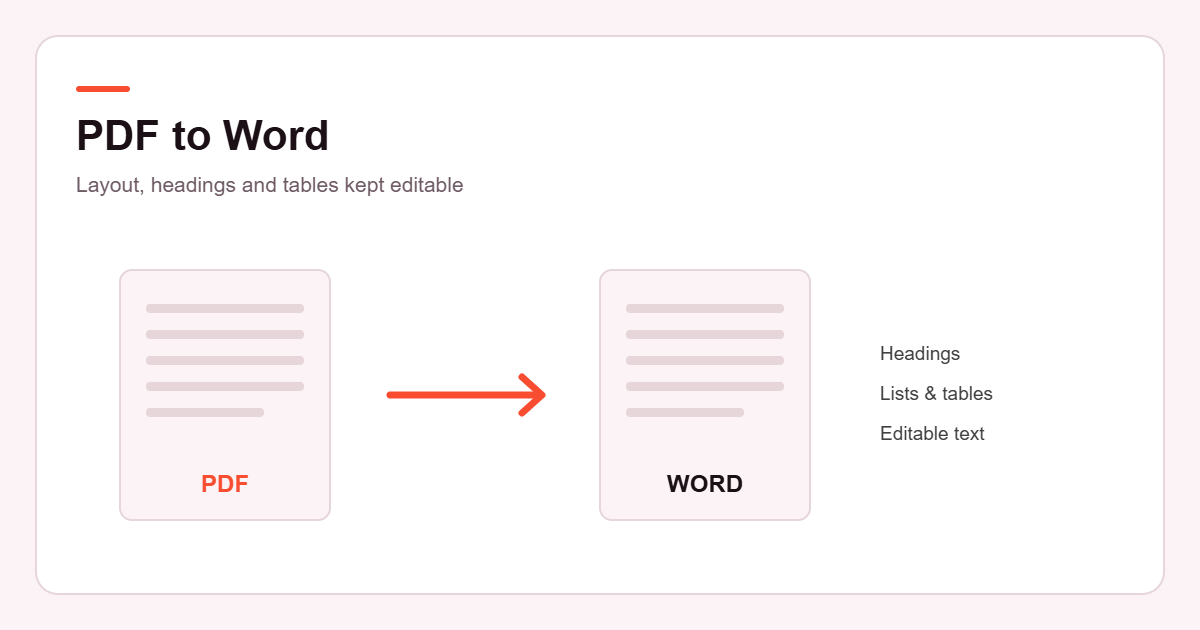
You get a genuine Word file with editable text, headings, lists and tables — not a PDF with the extension changed.
No account, no limits
No sign-up, no email, no watermark and no daily quota. Convert as many PDFs as you need, one at a time.
How to Convert PDF to Word
- Drop your PDF onto the box above, or press Choose PDF and pick a file from your device.
- Check the file details. The tool shows the file name, size and page count once the PDF has been read.
- Press Convert to Word. Progress is shown page by page while the text is extracted.
- Press Download Word File to save the .docx, then open it in Word, Google Docs, LibreOffice or Pages.
What Happens When You Convert a PDF to Word?
A PDF is a fixed layout. It stores characters at exact positions on a page rather than as paragraphs, headings and lists the way a word processor does. A Word document is the opposite: it stores structure, and works out the layout when you open it. Converting between the two means rebuilding that structure from the positions.
This converter reads every page with the same PDF engine your browser uses to display PDFs, then reconstructs the document: lines that run to the right margin are joined back into flowing paragraphs, larger or bolder short lines become headings, lines that start with a bullet or a number become real Word list items, and embedded fonts are inspected so that bold and italic survive the trip.
Rows of text that line up in consistent columns across several lines are rebuilt as a Word table. Images stored in the page are extracted and placed back into the document near the position they occupied in the PDF. Each PDF page ends with a page break, so the Word file keeps roughly the same pagination as the original.
Can I Convert a Scanned PDF to Word?
Not usefully, and the tool will tell you so rather than producing an empty file.
There are two different kinds of PDF. A text-based PDF was created from a digital document — exported from Word, a browser, or accounting software. Its text is real text: you can select it, search it and copy it. A scanned PDF is a photograph or scan of paper. Every page is a picture, and there is no text underneath it, only pixels that happen to look like letters.
This converter extracts the text layer. When that layer exists, conversion works well. When it does not, there is nothing to extract, and the tool reports: this PDF appears to be scanned or image-based. Text extraction may be limited. OCR support is not currently available.
Turning a picture of text back into text requires OCR (optical character recognition), which is a different technology and is not part of this tool. If you have a scanned document, you will need an OCR tool first. A quick way to tell which kind you have: open the PDF and try to select a sentence with your mouse. If the text highlights, it will convert. If you only get a selection box over the whole page, it is a scan.
PDF to Word Formatting and Accuracy
Conversion quality depends on the structure and formatting of the original PDF. No converter reproduces every PDF perfectly, because a PDF often does not record the structure that Word needs — it has to be inferred. Here is an honest account of what this tool does and does not carry across.
| Element | Result | Notes |
|---|---|---|
| Body text | Preserved | Fully editable, with wrapped lines rejoined into proper paragraphs. |
| Headings | Preserved | Detected by size and weight, and mapped to Word heading styles so the navigation pane works. |
| Bold and italic | Preserved | Read from the embedded font of each run of text. |
| Bullet and numbered lists | Preserved | Rebuilt as real Word lists that renumber when you edit them. |
| Tables | Usually preserved | Rebuilt where columns align consistently. Merged cells, nested tables and borderless layouts may come through as plain paragraphs. |
| Images | Usually preserved | Extracted and reinserted near their original position. Vector drawings and unusual image formats may be skipped. |
| Page size and breaks | Preserved | The Word file uses the PDF page size, with a page break between pages. |
| Exact fonts and spacing | Not reproduced | Text is set in a standard document font at its original size. The result is clean and editable rather than pixel-identical. |
| Columns, headers and footers | Flattened | Multi-column pages are read in reading order; running headers and footers appear as ordinary text. |
| Forms, annotations, signatures | Not carried over | Only page content is converted. |
In short: expect the words, the structure and most of the furniture to arrive intact and ready to edit. Expect to spend a minute tidying complex layouts. That is true of every PDF to Word converter, paid ones included — anyone promising a perfect copy of a complicated PDF is overselling.
Are My PDF Files Stored?
No. There is no upload and no storage, because there is no server involved in the conversion at all.
When you choose a file, your browser reads it from your disk into its own memory. The PDF is parsed there, the Word file is assembled there, and the download is produced from memory on your machine. Etemora never receives the document, never sees its contents and has nothing to delete afterwards. Closing or reloading the tab clears everything, and pressing Remove PDF or Convert Another PDF discards the current document immediately.
The one thing your browser does fetch from the internet is the PDF reading library itself, loaded from a public code CDN the first time you pick a file. That is program code coming to you; no part of your document goes the other way. If you want to confirm it, open your browser's developer tools, switch to the Network tab and convert a file — you will not see your PDF being sent anywhere.
This matters for contracts, invoices, medical letters, bank statements and anything else you would not want sitting on a stranger's server. Most free online converters upload your file, process it on their infrastructure and promise to delete it later. This one cannot upload it, which is a stronger guarantee than a promise.
PDF vs Word: What's the Difference?
They solve opposite problems, which is exactly why converting between them is so common.
| Word (DOCX) | ||
|---|---|---|
| Purpose | Final, fixed presentation | Working, editable document |
| Layout | Identical on every device and printer | Reflows to fit the page, font and screen |
| Editing | Awkward; needs a dedicated PDF editor | Designed for it |
| Structure | Positions of characters on a page | Headings, paragraphs, lists, styles |
| Best for | Sending, signing, archiving, printing | Writing, revising, collaborating |
The usual workflow runs in both directions: draft in Word, export to PDF to send it out — then, when someone asks for a change and the original file is long gone, convert the PDF back to Word to make it.
When Should You Convert a PDF to Word?
Converting is the right move when you need to change the words, and the wrong move when you only need to read or share them.
It is worth doing when you have lost the source file and need to update a document, when you want to reuse sections of a report in something new, when a client sends a contract as a PDF and asks for edits, when you need to quote or translate a long document without retyping it, or when you want the text in an accessible, screen-reader-friendly form you can restyle.
It is not worth doing when you simply want to read the file, when you need the layout to stay exactly as it is, when the document has been signed and converting would break the signature, or when the PDF is a scan — in that case you need OCR, not a converter. If your aim is a smaller file rather than an editable one, the image compressor is the better tool for shrinking the pictures that usually cause the bulk.
Reference: Page geometry and text extraction behaviour follow the published PDF specification, ISO 32000-2:2020.
Frequently Asked Questions
What is a PDF to Word converter?
It is a tool that reads a PDF and rebuilds its contents as a Word document, so the text can be edited in a word processor. A PDF stores characters at fixed positions; the converter turns those positions back into paragraphs, headings, lists and tables that Word understands.
How do I convert a PDF to Word?
Drop your PDF onto the box at the top of this page or press Choose PDF, then press Convert to Word. When it finishes, press Download Word File. Nothing is installed and no account is needed.
Can I convert PDF to DOCX?
Yes. DOCX is exactly what this tool produces — the standard Word format used by Microsoft Word, Google Docs, LibreOffice Writer, Apple Pages and WPS Office.
Is the PDF to Word converter free?
Yes, completely. There is no payment, no sign-up, no email address, no watermark on the output and no daily conversion limit.
Can I convert a scanned PDF to Word?
No. A scanned PDF contains pictures of text rather than text, and extracting words from a picture requires OCR, which this tool does not include. If you upload one, the tool detects it and tells you instead of giving you an empty document.
Will my Word document keep the original formatting?
Much of it, but not all. Paragraphs, headings, bold and italic, lists, page size and page breaks come through reliably. Exact fonts, precise spacing, columns and complex layouts are not reproduced — the output is clean and editable rather than pixel-identical. Conversion quality depends on the structure and formatting of the original PDF.
Can I convert a PDF with tables?
Often, yes. Where rows and columns line up consistently, the table is rebuilt as a real Word table you can edit. Merged cells, nested tables and tables held together only by whitespace may arrive as plain paragraphs and need manual formatting after conversion.
Are uploaded PDF files stored?
Nothing is uploaded in the first place, so nothing is stored. The whole conversion happens inside your browser on your own device. Etemora never receives the file and has no copy to keep or delete.
Is it safe to convert a PDF online?
With most online converters you are trusting a company with the contents of your document, because the file is uploaded to their servers. This tool avoids that question entirely by never sending the file anywhere. For confidential material — contracts, invoices, statements, personal records — browser-side conversion is the safer approach.
What is the difference between PDF and DOCX?
PDF is a fixed-layout format built to look the same everywhere and to be read rather than changed. DOCX is Word's editable format, which stores structure and reflows the layout as you type. Use PDF to send and archive; use DOCX to write and revise.
Is there a file size limit?
Yes, 25 MB per file. Because everything runs in your browser, the limit exists to protect phones and tablets from running out of memory. Long documents work fine — a 60-page report converts in about a second on a laptop — but very large or graphics-heavy files take longer on a phone.
Can I convert several PDFs at once?
Not yet — the tool handles one PDF at a time so that each conversion is reliable and memory use stays predictable. Press Convert Another PDF when you are ready for the next one.
More Free Tools
Guides related to this tool
 AI ToolsGemini vs ChatGPT (2026): Which AI Assistant Should You Use?
 AI ToolsPerplexity vs Claude (2026): Which AI Tool Should You Use?
 FreelancingFiverr Review for Freelancers (2026): Fees, Levels and Payouts