
What Is Antivirus Software? Complete Guide for 2026
 By M. Zaid
- Updated October 25, 2026
- 18 min read

What is antivirus software? It is a security program designed to detect, block and sometimes remove malicious software, commonly called malware, from computers and other supported devices. Depending on the product, it may scan files, monitor activity in real time, check downloads and warn you about suspicious behavior.
Antivirus software can help protect against threats such as viruses, trojans, spyware and some ransomware. However, it cannot prevent every cyberattack or replace safe browsing, software updates, strong passwords and reliable backups. This guide answers what is antivirus software in plain English: how it works, which features matter, when built-in protection may be enough and how to choose software that fits your devices and risks.
Quick answer: What is antivirus software? It is a program that helps protect devices by identifying, blocking, quarantining or removing certain types of malware. It may use known threat signatures, behavioral detection and cloud-based intelligence. Its effectiveness depends on the product, settings, updates and the threat involved, so it should be one layer of a broader cybersecurity plan.
Comparing protection for your devices?
See Antivirus Software →
How Does Antivirus Software Work?
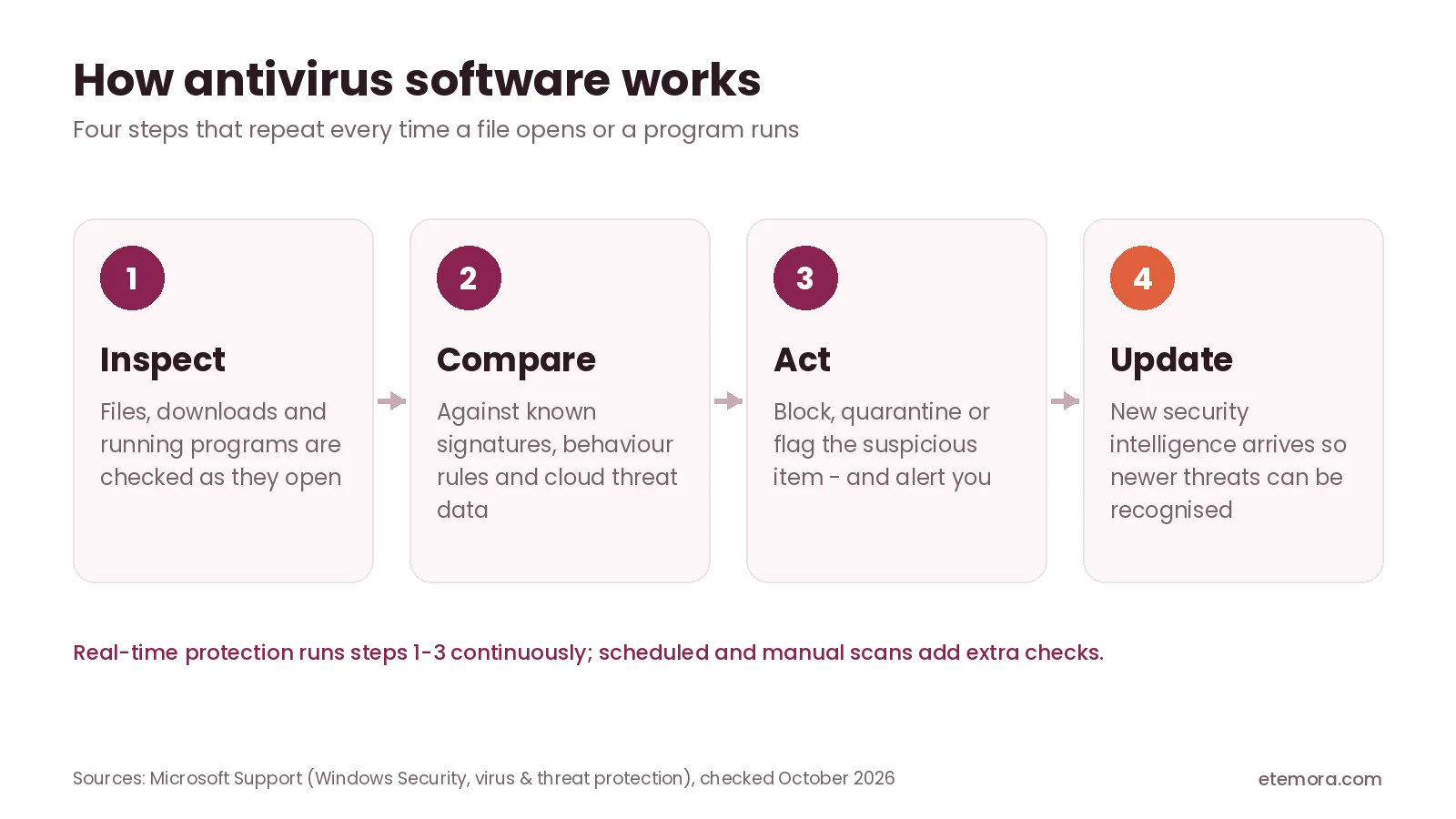
The simplest answer to what is antivirus software is “a program that inspects, compares and acts.” It uses several techniques to identify suspicious files and activity, and the exact methods depend on the product, operating system and security settings.
Signature-based detection
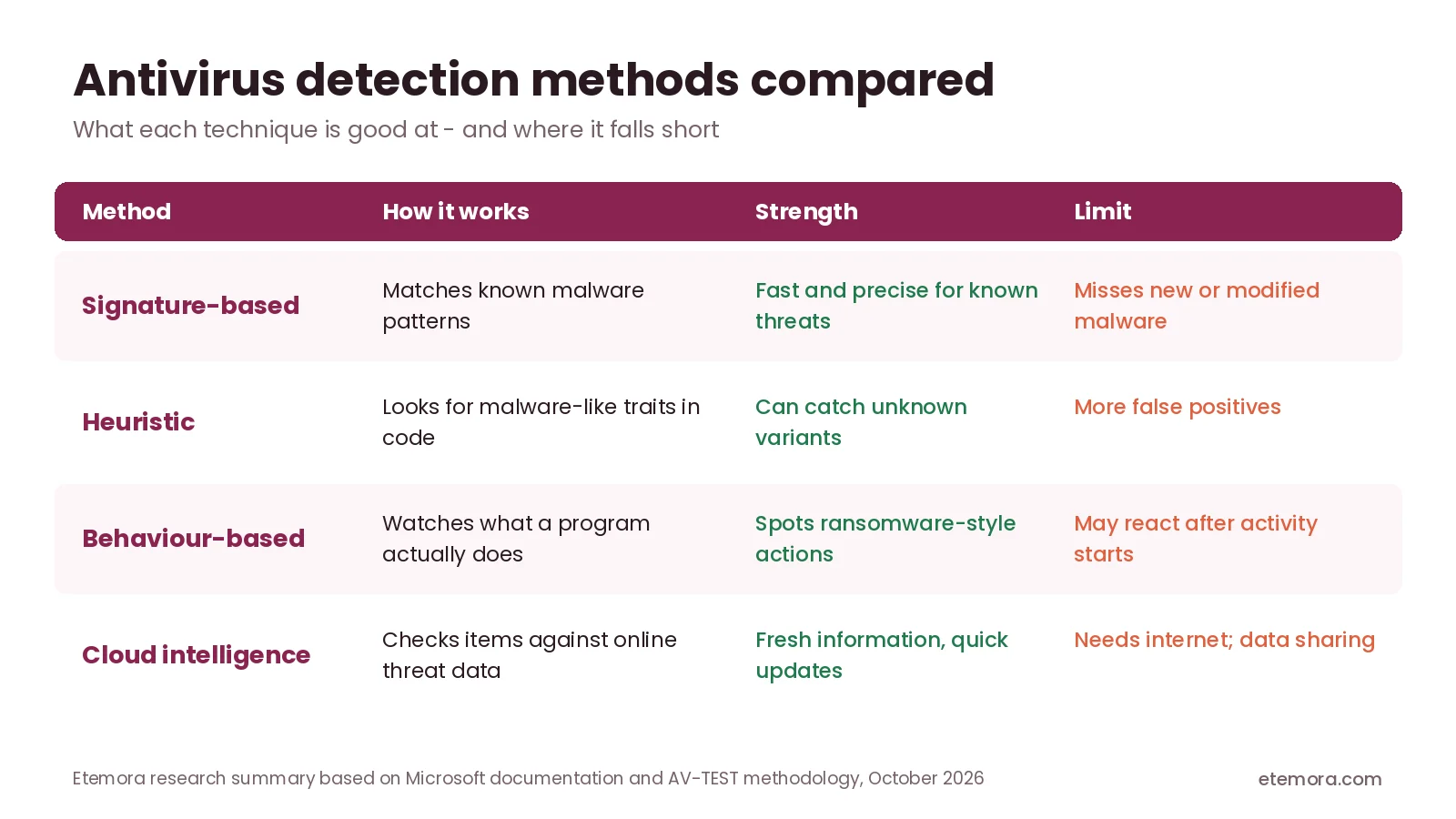
A signature is a recognizable pattern associated with a known threat. Antivirus software compares files against these patterns to identify known malware. This works well against recognized threats, but it depends on current detection data and cannot catch every new or modified threat through signatures alone.
Heuristic and behavior-based detection
Heuristic detection looks for characteristics associated with malicious software, while behavior-based detection watches what a program actually does. For example, a sudden attempt to modify many files or interfere with security settings may trigger a warning or block. These methods help catch threats that do not match a known signature, but legitimate programs sometimes behave in ways that look suspicious, so false positives happen.
Real-time protection
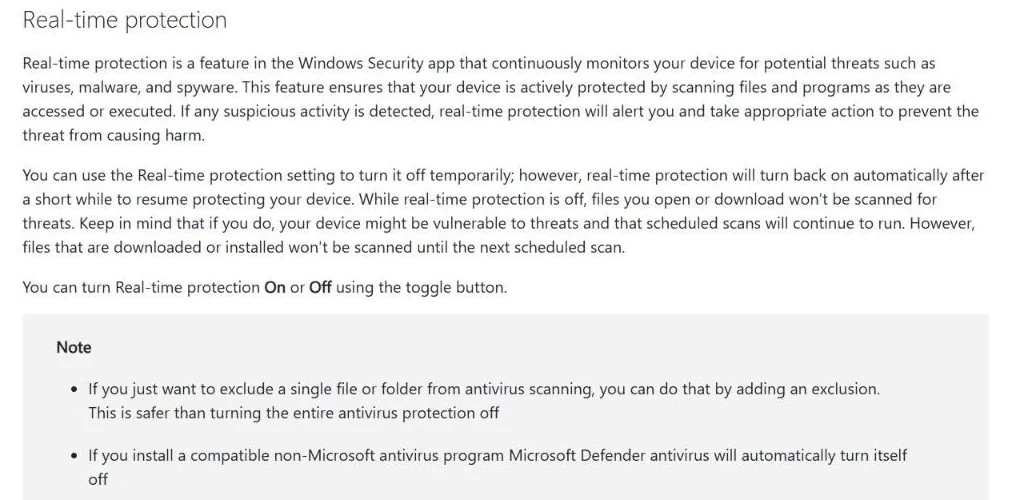
Real-time protection monitors files and activity as you use your device. Microsoft’s Virus & threat protection guide says real-time protection in Windows Security continuously monitors for threats such as viruses, malware and spyware by scanning files and programs as they are accessed or executed. If you switch it off temporarily, Windows turns it back on automatically after a short while.
Scheduled and manual scans
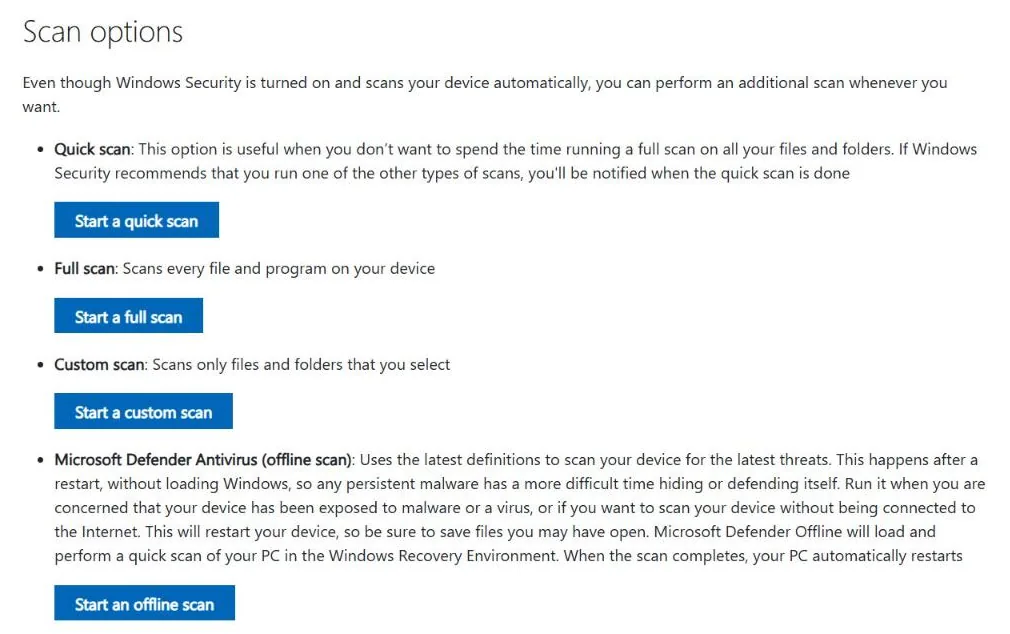
A scheduled scan checks a device at a set time, while a manual scan lets you start a check whenever you are concerned. In Windows Security, a quick scan covers common locations, a full scan checks every file and program, a custom scan checks only the files and folders you choose, and Microsoft Defender Offline restarts the PC to scan outside Windows, which makes persistent malware harder to hide.
Quarantine and removal
When antivirus software identifies a suspected threat, it may block the activity, quarantine the file or offer to remove it. Quarantine isolates a file so it cannot run normally while you review the detection. Do not restore a flagged file just because you recognize its name; if you believe the detection is wrong, verify the file’s source and follow the security provider’s guidance before creating an exception.
Cloud-based threat intelligence
If you are asking what is antivirus software doing in the background, cloud lookups are a big part of the answer. Many security products use cloud services to check suspicious files or activity against current threat information. That helps them respond to threats not yet described in locally stored detection data. Cloud features may depend on an internet connection, product settings and the provider’s data-handling policies, so review the privacy documentation if you are concerned about what is shared.
What Types of Malware Can Antivirus Software Detect?
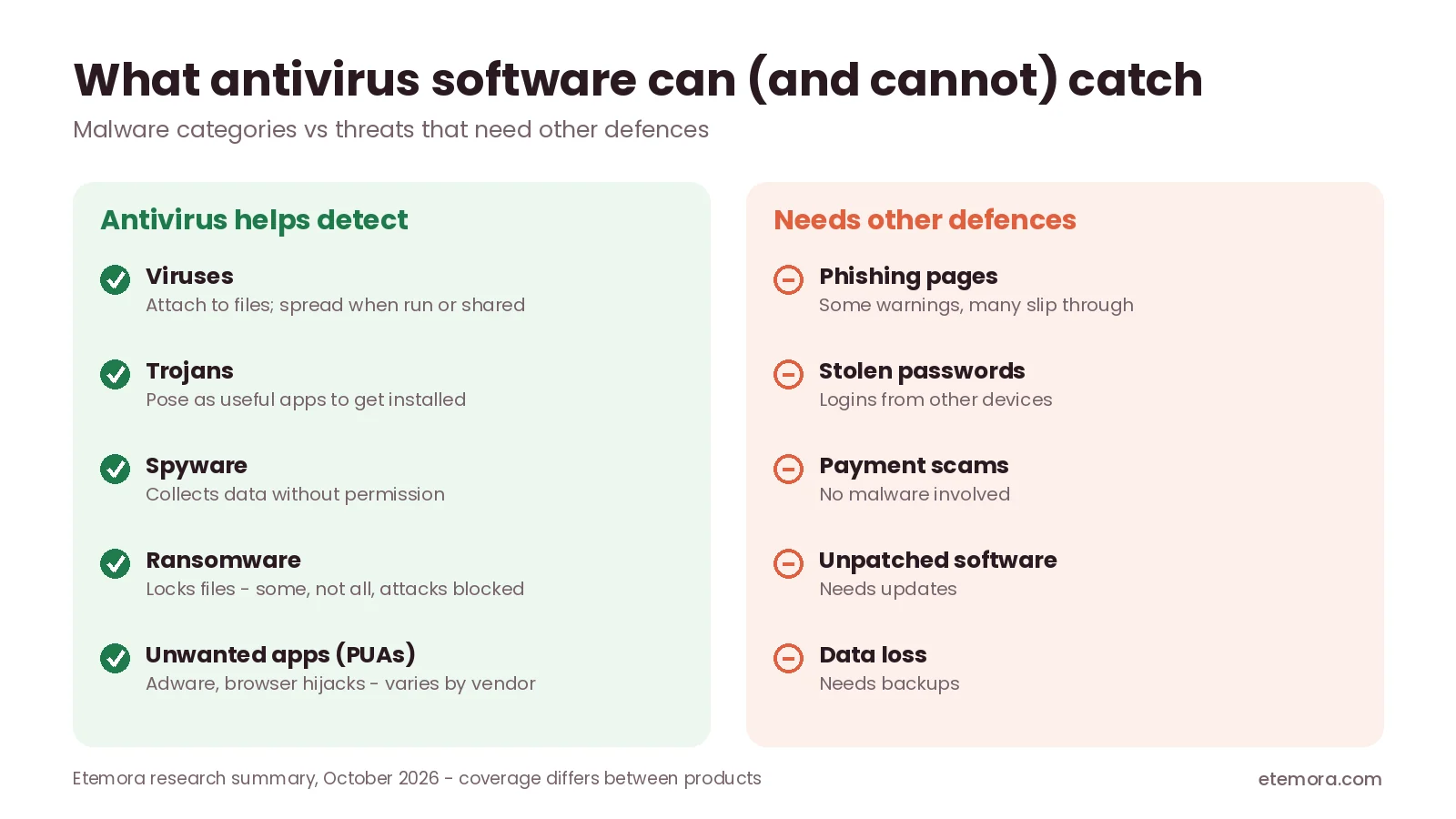
Part of understanding what is antivirus software is knowing what it is built to catch. Malware is a broad term for software designed to cause harm, gain unauthorized access or perform unwanted actions, and antivirus coverage differs between products.
Computer viruses
A computer virus attaches itself to a file or program and can spread when the infected item is run or shared. The word is often used loosely for all malware, but a virus is only one category.
Trojans
A trojan disguises itself as a legitimate or useful program to persuade someone to install or run it. Depending on its purpose, it may steal information, install more malware or give an attacker unauthorized access.
Spyware
Spyware gathers information about a device or user without permission. That may include browsing activity, personal details or other sensitive data.
Ransomware
Ransomware can make files or systems unavailable and may be combined with data theft or extortion. Antivirus tools can detect or block some ransomware, but they cannot guarantee that every attack will be stopped. Windows Security also offers ransomware protection settings, including Controlled folder access, which prevents unknown apps from changing files in protected folders.
Potentially unwanted applications
Some products flag applications that cause unwanted behavior, such as intrusive advertising or unexpected changes to browser settings. Definitions and controls vary by provider.
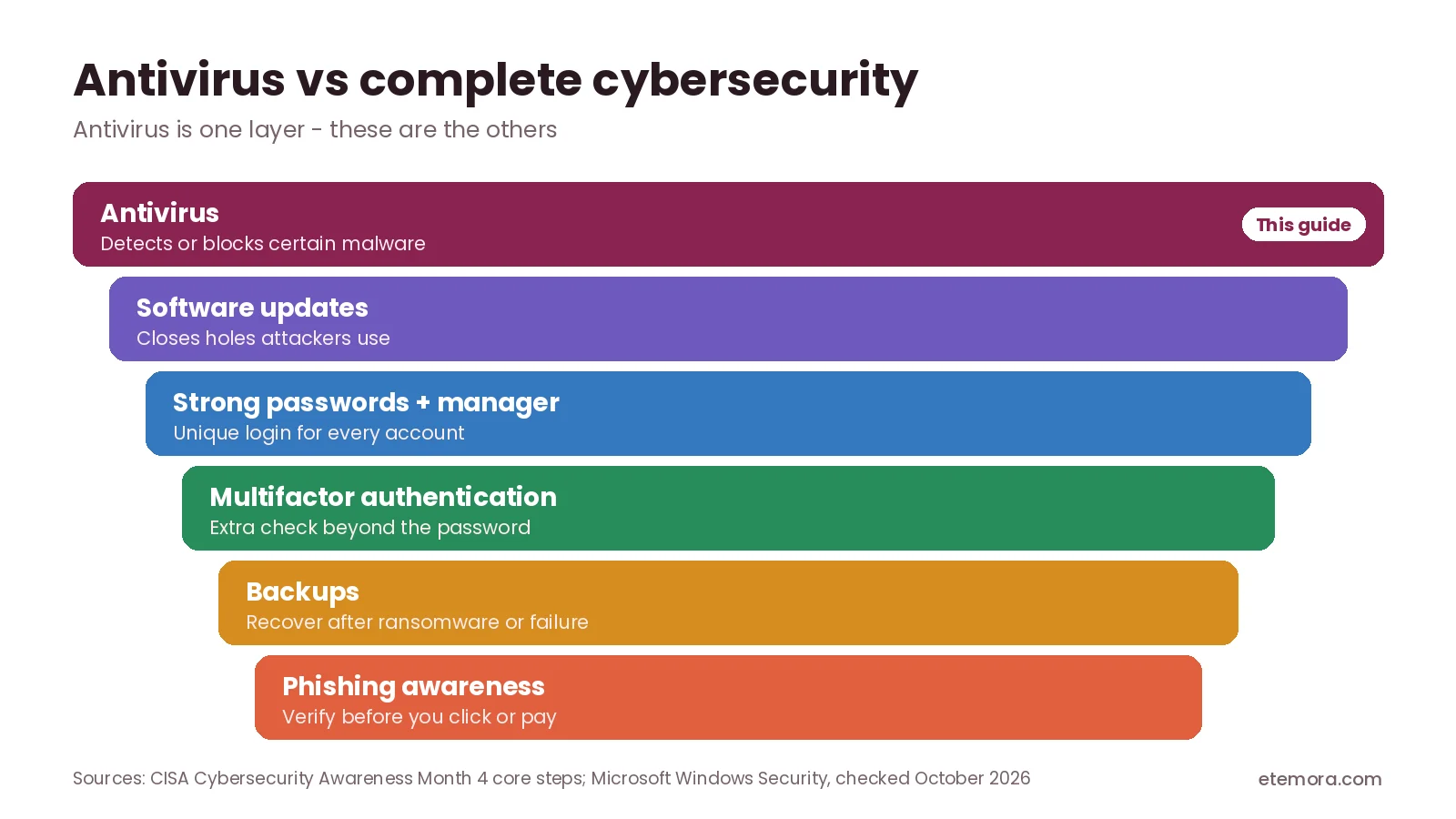
Antivirus protection is not the same as complete fraud prevention. A malicious message may persuade someone to send money without installing anything, and a stolen password can be used from another device. Those risks need account security, verification procedures and user awareness; our guide to what cybersecurity covers beyond antivirus explains the other layers.
Is Built-In Antivirus Software Enough?
For many everyday users, the practical question behind what is antivirus software is whether the protection already on their device is enough. Built-in antivirus may be sufficient when it is supported, updated and configured correctly. Whether you need a separate product depends on your operating system, how you use your devices and the extra features you want.
According to Microsoft’s Windows Security app overview, Windows Security is built into Windows and includes Microsoft Defender Antivirus, Windows Firewall and Smart App Control, which work together to provide real-time protection against viruses, malware and other threats.
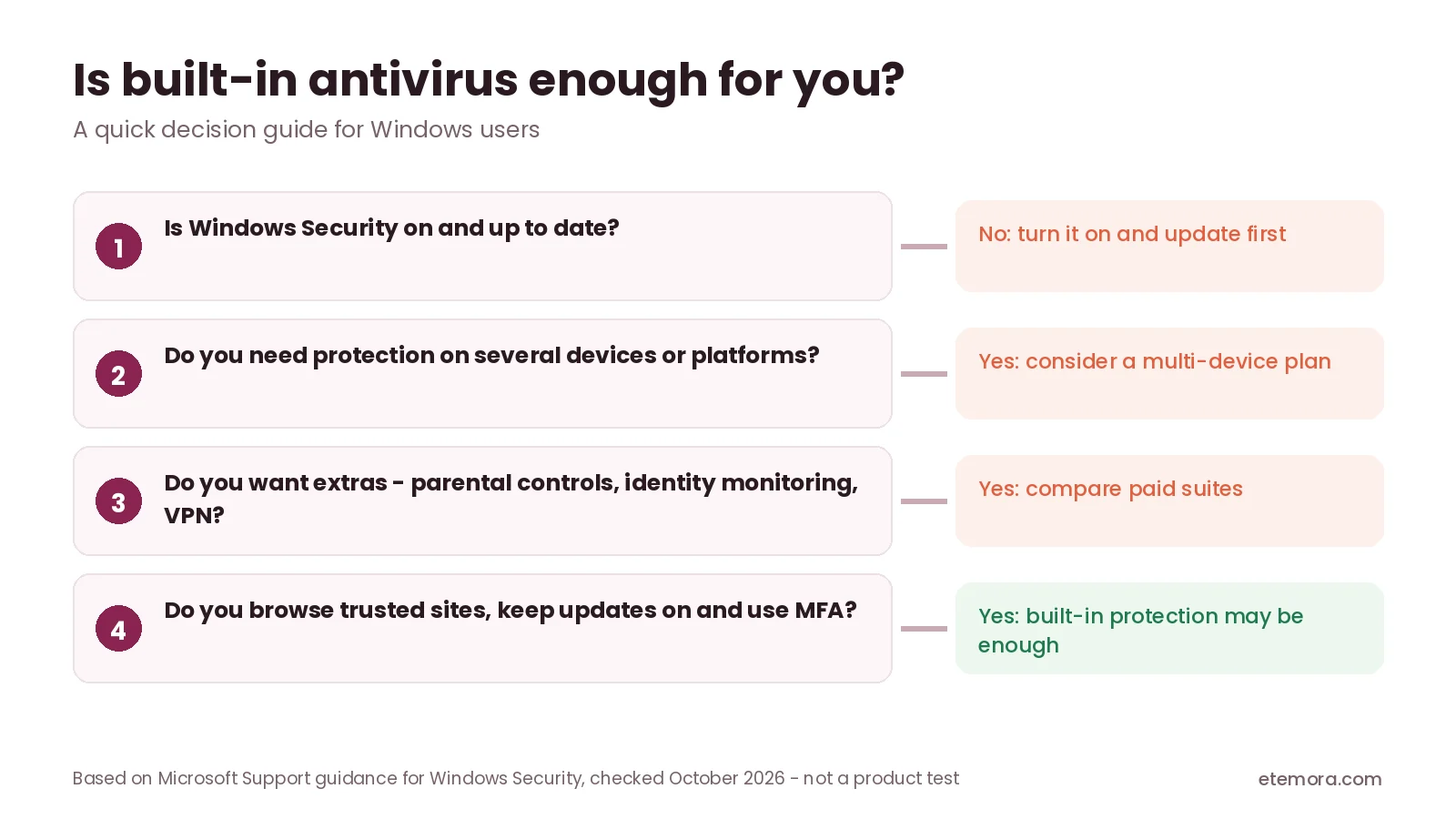
Before buying another product, check that your existing protection is active and up to date. On Windows, open the Windows Security app and review the Virus & threat protection section. Built-in protection is a reasonable starting point if you mainly browse trusted websites, use supported software, keep updates enabled and follow sensible security practices. You may want extra software if you need protection across several devices, parental controls, identity monitoring or other services your current setup lacks.
A paid subscription does not automatically mean better protection for everyone. Extra products can add notifications, background processes, overlapping features and another bill to manage, so choose based on a real need.
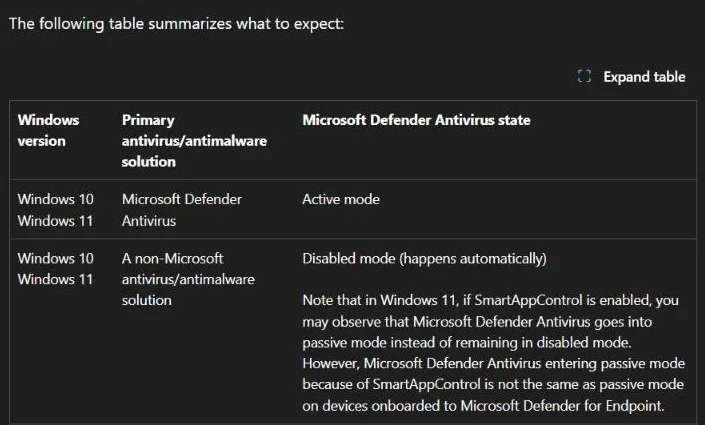
Also avoid running two full antivirus products with overlapping real-time protection unless the providers explicitly support it. Microsoft notes that installing a compatible non-Microsoft antivirus program makes Microsoft Defender Antivirus turn itself off automatically, and its compatibility documentation adds that Defender can turn back on automatically if the other product expires, is uninstalled or stops providing real-time protection.
For a broader look at the options, see our guide to antivirus software for different devices and needs.
What Antivirus Software Cannot Protect You From
An honest answer to what is antivirus software has to include its limits. Knowing them helps you avoid relying on it for problems it was never designed to solve.
Phishing and social engineering
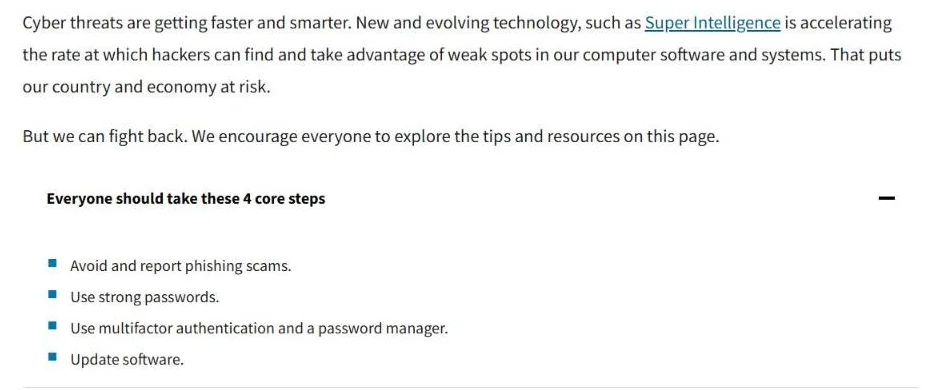
A convincing fake login page can trick you into entering a real password, and a scammer can persuade you to transfer money without installing any malware. Antivirus and browser protection may warn about some dangerous websites, but you should still verify unexpected requests independently. CISA’s four core steps for everyone are to avoid and report phishing, use strong passwords, use multifactor authentication and a password manager, and update software.
Stolen passwords
If an attacker already knows your password, antivirus software may not stop them from signing in from another device. Use unique passwords, enable multifactor authentication and review unfamiliar sessions. You can compare password managers for unique, secure passwords.
Unpatched devices and services
Antivirus cannot reliably make up for every vulnerability in an unsupported operating system, an outdated router or an unmaintained website. Keep software supported and install security updates promptly.
Data loss
Antivirus may detect some threats before they damage files, but it cannot guarantee your information stays available. Hardware failure, accidental deletion, theft and ransomware can all cause data loss, so keep separate backups and check that you can restore them. To compare cloud storage options for files and backups, see our comparison.
Unsafe online behavior
Downloading pirated software, bypassing security warnings, installing unknown browser extensions or approving unexpected sign-in requests can create risks antivirus cannot fully offset. A VPN does not fix these either; learn what a VPN protects and what it does not. If a download or request seems suspicious, stop and verify it rather than relying entirely on a warning system.
How to Choose Antivirus Software
Once you know what is antivirus software and what it can’t do, choosing one gets easier. Focus on the protection you actually need instead of counting features in a subscription.

1. Check independent protection results
Independent labs evaluate security products with defined methods. AV-TEST’s Windows home-user results score each product out of 6 points in three categories, protection, performance and usability, for a maximum of 18. Products with 10 points or more receive its seal of approval, and 17.5 or more earns a “TOP PRODUCT” award. In its August 2026 round, AV-TEST evaluated 15 home-user products on Windows 11 during July and August 2026 using their default settings.


In that round, every product scored 17.5 or 18. Microsoft Defender Antivirus (Consumer) scored 6 for protection, 5.5 for performance and 6 for usability. Because top scores are so close, one test period cannot decide which product is best for you, so check the operating system, product version, test date and method before drawing conclusions.

2. Confirm operating system support
Check that the product supports your version of Windows, macOS, Android or iOS. Features can differ between platforms even under the same product name, and plans often have device limits; one covering a single computer may not suit a household with several phones and laptops.
3. Compare real-time protection and web safeguards
Look for clear documentation of real-time malware protection, download scanning, suspicious website warnings and ransomware safeguards. Don’t assume every feature is in every edition.
4. Review privacy practices
Security software may process information about files, detections, device activity or suspicious URLs. Read the privacy policy and product documentation to understand what is collected, why and what controls you have.
5. Check support and ease of management
Decide whether you need simple protection for one device or a dashboard for several. Check support channels and how the provider handles false detections and account recovery.
6. Calculate the total subscription cost
Compare the first billing term, renewal price, billing length, device limit and optional add-ons. Security subscriptions often renew at a higher price than the introductory offer, so check the provider’s current terms before buying.
7. Avoid unnecessary overlap
If your device already includes active security features, work out what a separate product would actually add. Extra features can be useful, but overlapping tools add complexity without solving a specific problem.
How to Check Whether Your Antivirus Is Working
Knowing what is antivirus software only helps if yours is actually running. You don’t need to download suspicious files or expose your device to malware to check basic security settings. Start with the built-in status and update information.
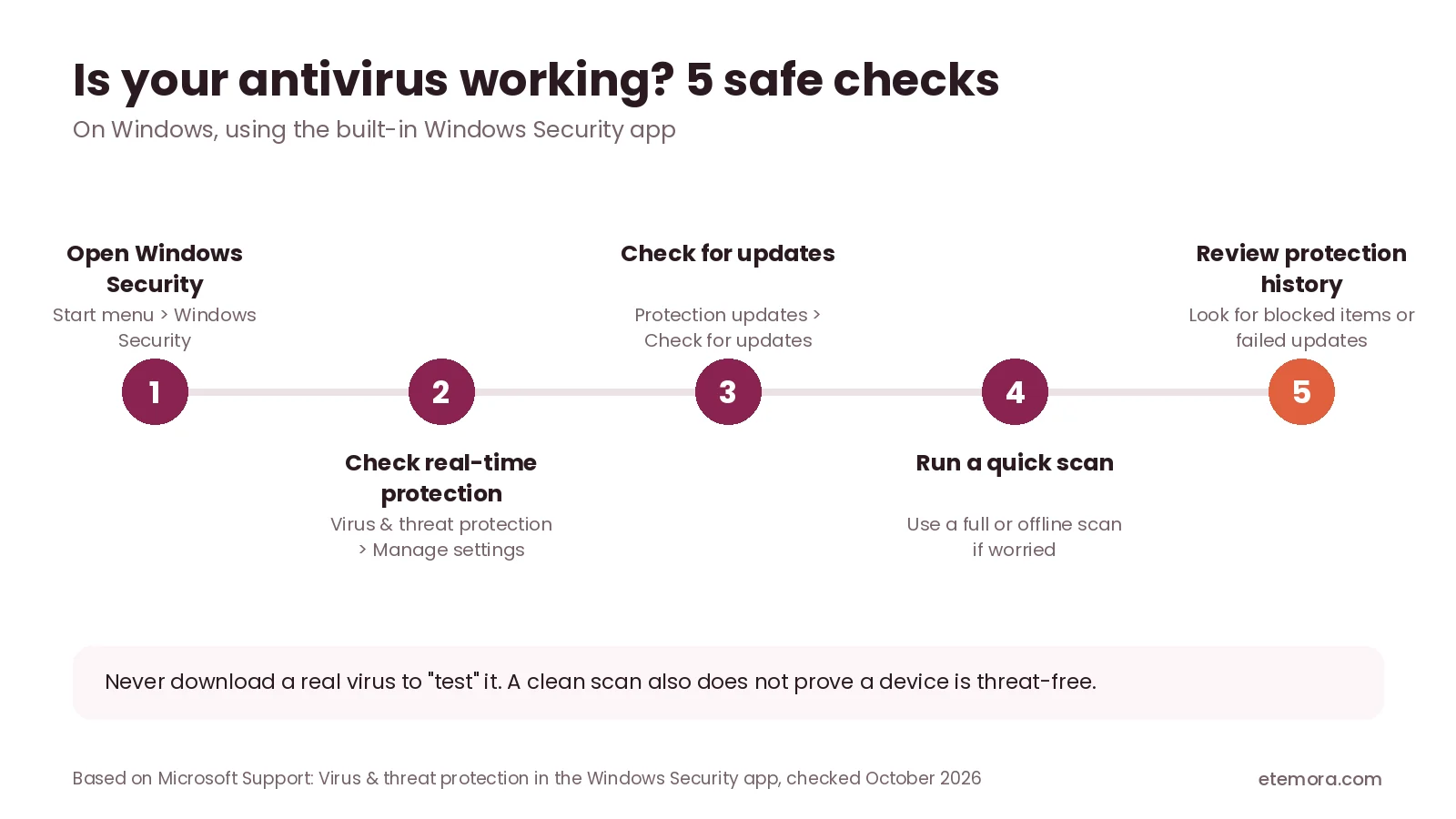
Step 1: Open your security app
On Windows, search for Windows Security from the Start menu, open Virus & threat protection and review the protection status.
Step 2: Check real-time protection
Under Virus & threat protection > Manage settings, confirm that real-time protection is on. If you use another antivirus product, follow its official instructions instead, and never disable protection just to see what happens.
Step 3: Check for updates
Confirm that security intelligence (virus definitions) is current. An out-of-date product may lack the information needed to recognize newer threats.
Step 4: Run a scan
Run a quick scan, or a full or offline scan if you are worried. If you suspect a serious infection, follow the provider’s official guidance rather than relying only on a routine scan.
Step 5: Review alerts and protection history
Look for detected threats, failed updates, disabled features or actions that need attention, and investigate unfamiliar alerts using official documentation. A clean scan does not prove a device is free from every threat; if odd behavior continues, contact the device or security provider and protect important accounts from a separate trusted device.
Common Antivirus Mistakes to Avoid
Most problems come from how antivirus is used. Once you know what is antivirus software built to do, these mistakes are easy to avoid:
- Assuming installation is enough: confirm protection is on, updates work and alerts aren’t ignored.
- Ignoring renewal terms: subscriptions may renew automatically at a different price; note the next payment date.
- Turning off protection permanently: if a legitimate app is flagged, follow the provider’s guidance or add a single exclusion instead of switching everything off.
- Trusting every warning without checking: false positives happen, so verify the file’s source before allowing it to run.
- Forgetting backups: antivirus cannot guarantee every file survives an attack, hardware failure or accidental deletion.
- Believing antivirus prevents every scam: many scams rely on manipulation, not malware. Use multifactor authentication, verify payment requests through known channels and never share verification codes.
How We Compared
This guide to what is antivirus software is a research-based explainer; we did not run hands-on tests. It draws on Microsoft’s official Windows Security documentation and Defender compatibility guidance, CISA’s everyday online safety steps and AV-TEST’s published independent evaluations (August 2026 round). Sources were reviewed in October 2026. Product features and independent results change, so confirm the relevant version, test date and official documentation before buying. Read more about how we review.
Final Verdict: What Is Antivirus Software?
So, what is antivirus software? It is a program designed to detect, block, quarantine or remove certain types of malware. It helps protect your device, but it is not a complete solution for every cybersecurity risk.
Start by checking the protection already on your device. Keep it enabled and updated, use unique passwords and multifactor authentication, and back up important files. If you need more features or protection across several devices, compare products by independent results, supported platforms, privacy practices and total renewal cost.
- Best fit for everyday computer users: supported built-in protection with sensible security settings
- Best for families with multiple devices: a plan that clearly covers every computer and phone you need
- Best for users who want independent evidence: dated AV-TEST results for the exact product version
- Best for small businesses: endpoint management, access controls, backups and incident response alongside antivirus
- Best for users seeking extra features: a paid plan whose extras you will actually use
To compare options for your devices and needs, explore our full comparison.
Ready to compare antivirus products?
See Antivirus Software →Frequently Asked Questions
What is antivirus software in simple words?
What is antivirus software in simple words? It is a program that helps identify, block, quarantine or remove certain types of malicious software. Depending on the product, it may scan files, monitor activity in real time, check downloads and use threat intelligence to spot suspicious behavior. It cannot guarantee protection against every cyberattack, scam or account compromise.
Do I need antivirus software if I have Windows Security?
Windows Security includes Microsoft Defender Antivirus and other built-in protections. These may be enough for many everyday users when enabled, updated and configured properly. Whether to add another product depends on your devices, risk level and need for extras such as family management or identity protection.
Is free antivirus software safe to use?
Free antivirus software can provide useful protection, but features and limits vary. Check the publisher, supported systems, privacy policy, update arrangements and whether key features need payment. In AV-TEST’s August 2026 Windows round, free products such as Avast Free Antivirus and AVG Antivirus Free scored 18 out of 18. Download security software only from the official provider or a trusted app store.
Can antivirus software remove all viruses?
No. Antivirus software cannot guarantee that it will detect or remove every virus or other malware. Detection depends on the threat, the product, updates and the device’s condition. If you suspect an infection, run an appropriate scan, such as an offline scan in Windows Security, and follow the provider’s guidance if symptoms continue.
What is the difference between antivirus and anti-malware software?
When people ask what is antivirus software compared with anti-malware, the answer is mostly history. Antivirus traditionally meant software focused on computer viruses, while anti-malware is a broader term covering many kinds of malicious software. Modern products use both terms because they protect against multiple threat types. The actual features matter more than the label.
Does antivirus software protect against phishing?
Some antivirus products include web or phishing protection that warns about certain malicious websites and downloads. However, no product catches every fraudulent message or fake login page. Verify unexpected requests independently, use multifactor authentication and avoid entering credentials through links in suspicious messages.
Can I use two antivirus programs at the same time?
Running two full antivirus products with overlapping real-time protection is generally unnecessary and can cause conflicts. Some tools are designed to run alongside another antivirus, so check the providers’ documentation. On Windows, installing a compatible non-Microsoft antivirus makes Microsoft Defender Antivirus turn itself off automatically.
How often should I scan my computer for viruses?
If real-time protection is on, your security software continuously checks files and activity, and scheduled and manual scans add extra checks. Follow the product’s recommended settings and run a scan whenever you suspect a threat. Scan options vary by operating system and product.
Does antivirus software slow down a computer?
Antivirus software uses system resources while scanning, monitoring and updating. The effect depends on the device, workload, product and settings. AV-TEST reports performance as a separate category; in its August 2026 Windows round, 13 of 15 products scored the full 6 points and two scored 5.5.
How do I choose the best antivirus software?
Choose based on your operating system, device count, protection needs, independent test results, privacy practices, support and total subscription cost. Check both introductory and renewal terms, and avoid paying for features that don’t solve a real need. No single product is automatically right for everyone.
Sources
- Microsoft Support: Stay protected with the Windows Security app
- Microsoft Support: Virus and threat protection in the Windows Security app
- Microsoft Learn: Microsoft Defender Antivirus compatibility with other security products
- Microsoft: Windows security overview
- AV-TEST: The best Windows antivirus software for home users
- CISA: Cybersecurity Awareness Month – 4 core steps
Related articles you may like
 SecurityBest Free Antivirus in 2026: 6 Free Picks Compared by Features and Lab Scores
 SecurityBest Antivirus for Mac in 2026: 6 Picks Compared by Price and Lab Scores
 SecurityIs Windows Defender Enough in 2026? Test Results, Gaps and Settings
 SecurityHow to Know If Your Phone Is Hacked: 8 Signs and What to Do
 SecurityWhat Is Cybersecurity? Complete Beginner’s Guide 2026
 SecurityNordVPN vs Surfshark: Honest 2026 VPN Comparison