
How to Use AI for Work: 10 Proven Examples in 2026
 By M. Zaid
- Updated September 28, 2026
- 18 min read
- 10 Practical Examples
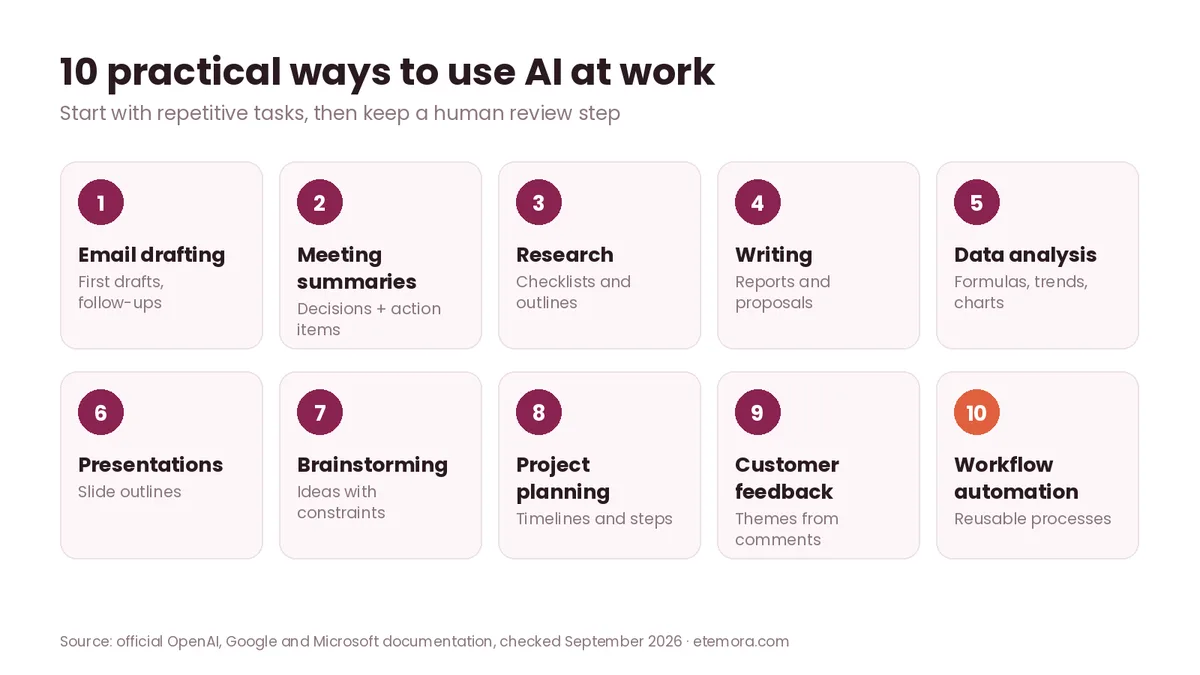
- 1. Draft and Improve Emails
- 2. Summarize Documents and Meetings
- 3. Research a Topic Faster
- 4. Write Reports and Proposals
- 5. Analyze Spreadsheets and Data
- 6. Create Presentation Outlines
- 7. Brainstorm Ideas
- 8. Plan Projects
- 9. Turn Feedback Into Themes
- 10. Create Reusable Workflows
- A Simple AI Prompt Formula
- What Not to Give AI at Work
- Using AI Without Losing Quality
- How to Choose AI Tools for Work
- Final Verdict
- FAQs
How to use AI for work is no longer just a question for technology teams. AI can help with everyday tasks such as drafting emails, summarizing documents, organizing information, analyzing spreadsheets, preparing presentations and generating ideas. The useful part is not simply asking an AI tool to “do my work.” It is giving the tool enough context to handle a defined part of the task while you review the result.
This guide shows 10 practical examples you can apply to common office, freelance and business workflows. Each example includes a sample prompt, what AI can handle and what you should still check yourself.
Quick Answer
The most practical way to use AI at work is to start with repetitive, time-consuming tasks such as drafting, summarizing, organizing and first-pass analysis. Use AI to create a starting point, then check facts, calculations, tone, confidential information and important decisions before using the output.
Want a general-purpose assistant for drafting, research and data questions?
See ChatGPT →How to Use AI for Work: 10 Practical Examples
If you are wondering how to use AI for work in a practical way, the examples below move from the simplest starting points, like email and summaries, to bigger workflows such as project planning and reusable processes. Pick one or two that match tasks you already repeat every week.
1. Draft and Improve Emails
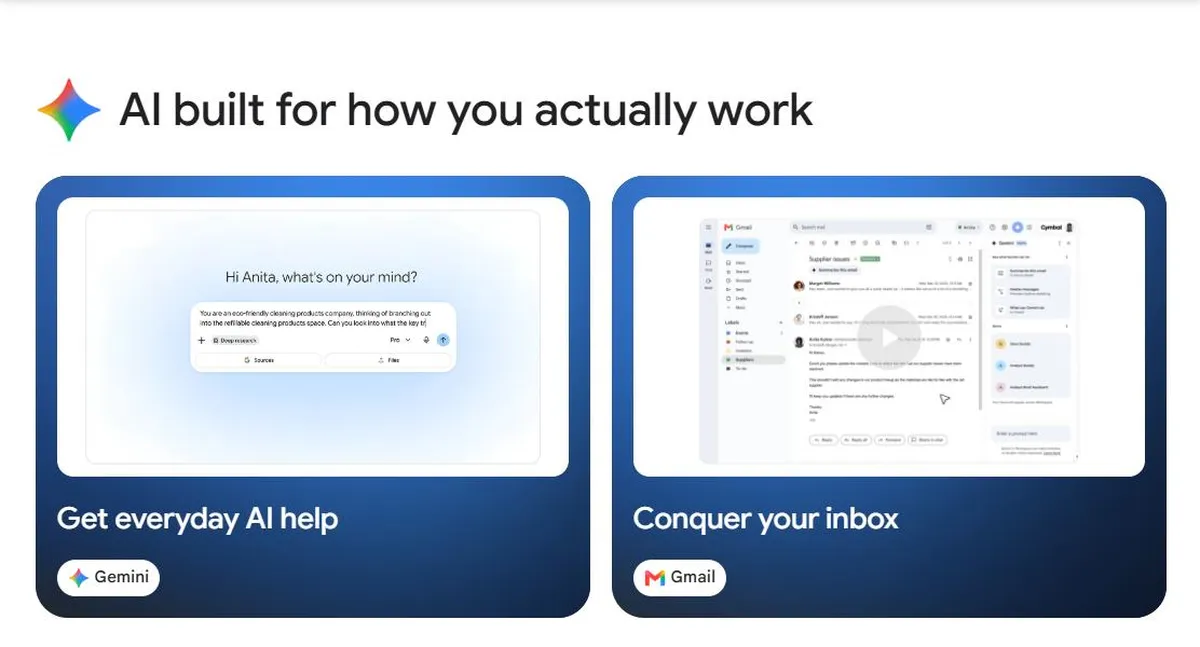
Email is one of the simplest places to start. Instead of writing every message from an empty screen, give AI the important information and ask it to produce a first draft. Google documents similar workflows for Gemini in Gmail, including drafting emails, proofreading drafts, summarizing long threads and suggesting replies.
For example, you could provide:
- Who the recipient is
- Why you are contacting them
- The key information
- The desired tone
- Any deadline
- The action you want from the recipient
Example prompt: “Write a concise professional email to a client explaining that the project will be delivered two days later than originally planned. Keep the tone honest and calm. Explain that the additional time is needed to complete the final review. Ask whether the revised Friday delivery works.”
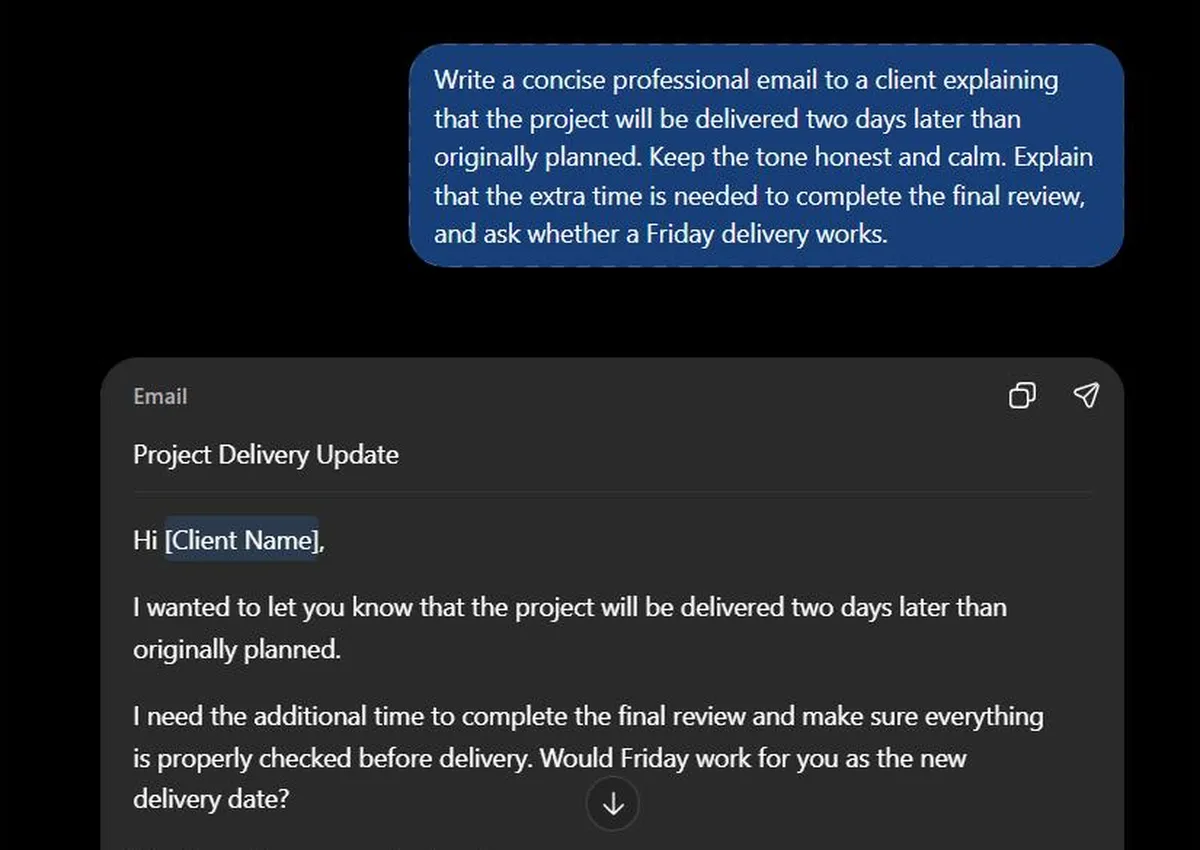
AI can produce the first draft, but you should verify names, dates, commitments and any statements about the project. This is especially useful for repetitive emails such as follow-ups, meeting requests, status updates and customer responses.
2. Summarize Long Documents and Meetings
Another practical answer to how to use AI for work is turning long information into something easier to review. You can provide meeting notes, reports, project documents or other material and ask AI to identify:
- Main decisions
- Action items
- Deadlines
- Open questions
- Risks
- People responsible for tasks
Google’s Workspace documentation describes Gemini features for summarizing email threads and documents, while Microsoft says Copilot can capture meeting insights and track action items in Teams.
Example prompt: “Summarize these meeting notes into four sections: decisions, action items, owners and unresolved questions. Do not add information that is not present in the notes.”
That last instruction matters. It reduces the risk of turning an AI-generated assumption into an apparent meeting decision. Always compare the summary against the original when the information affects money, deadlines, customers or important business decisions.
3. Research a Topic Faster
Research is another strong case for how to use AI for work: AI can help you create a starting point. Instead of asking for a huge final report immediately, break research into stages: define the question, identify subtopics, gather sources and finally organize the findings.
Example prompt: “Create a research checklist for comparing five project-management tools for a 20-person marketing team. Include pricing, collaboration, integrations, security, reporting and limitations.”
Tools with research features can also work with web information or connected business sources, depending on the product and plan. Perplexity, for example, currently offers Research queries and file analysis, with higher limits on its paid plans.
The important rule is simple: AI-generated research is not automatically verified research. For statistics, prices, regulations, product specifications and other changing information, check the original source before publishing or making a business decision.
For a broader tool comparison, see our guide to the best AI tools for work.
4. Write Reports, Proposals and First Drafts
AI can turn notes into a structured first draft. This works well for:
- Project proposals
- Internal reports
- Briefs
- Meeting agendas
- Job descriptions
- Marketing plans
- Customer communications
- Standard operating procedures
Google says Gemini in Docs can draft, refine and summarize documents, while Microsoft says Copilot in Word can draft documents, rewrite content for clarity and summarize long texts.
Example prompt: “Turn these notes into a one-page project proposal. Include the problem, proposed solution, deliverables, timeline, assumptions and next steps. Keep the language suitable for a small-business client.”
The key is to provide the actual information first. AI is much more useful when it transforms good source material than when it is asked to invent an entire business proposal from almost nothing.
Already working in Word, Excel, Outlook and Teams?
See Microsoft Copilot →5. Analyze Spreadsheets and Business Data
Spreadsheets are one of the most useful places to learn how to use AI for work. AI can make spreadsheet work easier, particularly when the task involves explaining patterns or creating formulas.
Google’s Gemini in Sheets documentation says it can create tables and formulas, generate data analysis and insights, build charts and perform actions such as creating pivot tables and sorting or filtering data. ChatGPT can also analyze uploaded spreadsheets and other structured files, create tables and charts, and explain the analysis.
Example prompt: “Analyze this monthly sales spreadsheet. Identify the three largest changes compared with the previous month, calculate the percentage change, and present the findings in a table. State which calculations you made.”
You should still check the source data, formulas, assumptions and calculations. For financial or operational decisions, treat AI analysis as assistance rather than automatic approval.
6. Create Presentation Outlines
Building a presentation often starts with a blank slide deck. AI can turn an outline, meeting notes or report into a logical presentation structure.
Example prompt: “Create a 10-slide presentation outline for a quarterly business review. Audience: company leadership. Include revenue trends, major achievements, problems, customer feedback, next-quarter priorities and decisions required.”
Microsoft says Copilot can transform notes and outlines into PowerPoint presentations, while Google provides Gemini features for Slides. AI can suggest the sequence and wording, but you should verify every number and make sure the presentation reflects the actual business context.
A good workflow is:
- Give AI the source material.
- Ask for an outline.
- Review the structure.
- Create or refine the slides.
- Check every factual statement.
- Adjust the presentation for the actual audience.
7. Brainstorm Ideas Without Starting From Scratch
AI can act as a brainstorming partner when you need alternatives. This can help with:
- Marketing campaigns
- Product names
- Blog topics
- Social media ideas
- Business processes
- Customer offers
- Meeting activities
- Content calendars
Instead of asking “Give me some marketing ideas,” give it constraints. Try:
“Generate 15 content ideas for a cybersecurity website targeting small-business owners. Divide them into beginner education, product comparisons, practical guides and current technology topics. Avoid duplicate topics.”
You can then ask AI to group the ideas, remove weak duplicates and identify gaps. The final selection should still come from a human who understands the audience and business goals.
For content teams, our roundup of the best AI writing tools covers tools focused specifically on writing workflows, and our list of the best AI image generators helps when a campaign also needs visuals.
8. Plan Projects and Break Large Tasks Into Steps
Project planning shows how to use AI for work on bigger tasks. AI is useful when a large project feels difficult to organize. Give it the objective, deadline, constraints and available resources.
Example prompt: “We need to launch a small business website in four weeks. Create a weekly project plan covering domain setup, hosting, page structure, copy, design, testing, analytics and launch. Identify dependencies and tasks that should happen before others.”
AI can turn this into a checklist or timeline. Microsoft says Copilot can help organize project discussions and track action items across Microsoft 365, while Google documents Gemini use cases for creating tables and trackers in Sheets.
The limitation is important: AI does not automatically know your team’s actual availability, priorities or internal dependencies unless that information is available to it. Treat the generated plan as a draft that needs human adjustment.
9. Turn Customer Feedback Into Themes
Businesses often receive useful information through reviews, surveys, emails, support conversations and sales notes. AI can help organize large amounts of text into themes.
Example prompt: “Group these 200 customer comments into recurring themes. For each theme, provide the number of comments, representative examples and whether the comment is positive, negative or mixed. Do not invent comments.”
You could then ask: “Which three themes appear most relevant to product improvement? Separate observations from recommendations.”
This approach can make unstructured feedback easier to review. However, sentiment classification and categorization can be imperfect. Important customer complaints should be reviewed against the original feedback rather than relying entirely on the AI summary.
10. Create Reusable Workflows
Once you discover a useful AI task, turn it into a repeatable process. For example, a marketing team might use the same structure every week:
- Gather campaign data.
- Summarize performance.
- Identify unusual changes.
- List possible explanations.
- Draft questions for the next meeting.
- Create a short executive summary.
- Have a human review the final report.
Google’s Workspace AI resources describe creating custom AI flows to draft emails, track tasks and more. Microsoft also brings tools, data and AI agents together across its work applications.
This is where AI can move from a one-off chatbot interaction into a repeatable work process. The more important the workflow, the more important it is to define approval points.
A Simple AI Prompt Formula for Work
You do not need complicated prompt formulas to learn how to use AI for work well. A useful structure is:
Role + task + context + constraints + output format.
For example: “You are helping a marketing manager. Analyze the campaign notes below and identify the five most important customer objections. Use only the supplied information. Separate direct evidence from your interpretation. Return the results in a table.”
This gives the AI a clearer job than “Analyze this.” Google’s prompt guidance similarly recommends natural language plus the context and specific details the tool needs, rather than a vague instruction.
You can improve a prompt further by specifying:
- Who will read the result
- Desired length
- Tone
- Source material
- Required format
- What the AI must not assume
- What needs human approval
What Not to Give AI at Work
Knowing how to use AI for work safely also means knowing what to leave out. AI can be useful without receiving every piece of information you have. Before putting company information into an AI service, check your organization’s policies and the specific product’s privacy and data-handling terms.
Be particularly careful with:
- Passwords
- API keys
- Private customer information
- Financial account information
- Confidential contracts
- Sensitive employee information
- Unpublished business plans
- Proprietary source code
- Personal information that you are not authorized to share
Enterprise products can provide additional administrative and data-protection controls, but availability and terms differ by product and plan. Microsoft says Microsoft 365 Copilot keeps organizational data within the Microsoft 365 tenant and only shows users what they are already authorized to access, while Google documents security and privacy controls for Workspace with Gemini.
Do not assume that because an AI tool is widely used, every type of company information is automatically appropriate to upload.
How to Use AI for Work Without Losing Quality
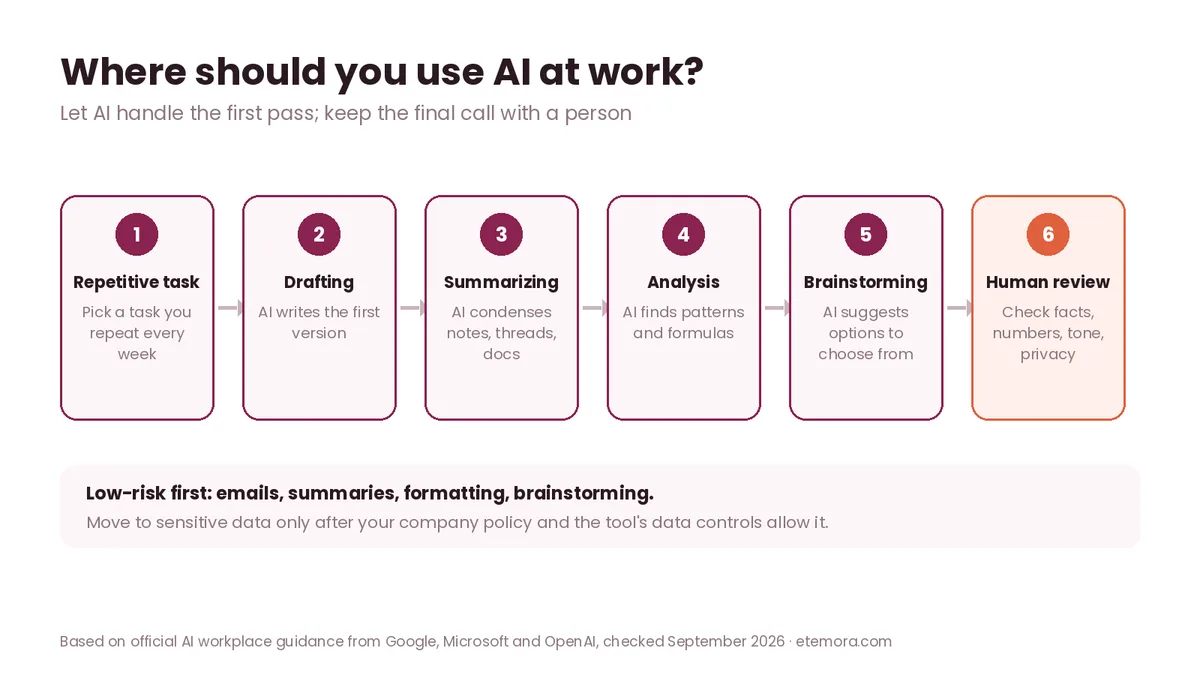
AI can make a first draft faster, but speed is not the same thing as accuracy. Use a review process for important work.
Check facts. Verify names, dates, numbers, citations, product specifications and other factual claims.
Check calculations. If AI provides a financial calculation, spreadsheet formula or statistical conclusion, independently verify important results.
Check tone. An AI-generated email can sound too formal, too casual or unlike your normal communication style.
Check context. AI may not know an internal history or relationship that changes how a message should be written.
Check originality. Do not blindly publish generated text. Review it for repetition, unsupported claims and language that does not fit your organization.
Keep humans responsible for decisions. AI can help prepare information. It should not silently become the person making important business, financial, legal, hiring or customer decisions.
For a wider look at general-purpose assistants, see our comparison of the best AI chatbots in 2026.
How to Choose AI Tools for Work
Choosing the right tool is the last part of how to use AI for work effectively.
1. Start with the task, not the tool. Do not begin by asking which AI application is most popular. Start with the problem. If your problem is email, an AI feature inside your existing email platform may be more useful than a separate application.
2. Use tools that fit your existing workflow. Microsoft 365 users may benefit from Copilot features inside Word, Excel, PowerPoint, Outlook and Teams. Google Workspace users can use Gemini across Gmail, Docs, Sheets, Slides and other Workspace products. The less unnecessary copying and pasting required, the simpler the workflow can become.
3. Compare data controls. Before using AI with company information, understand how the provider handles your data, what administrative controls are available and what your plan includes.
4. Start with low-risk tasks. Email drafts, brainstorming, formatting and summarization are reasonable starting points for many teams. Move toward more sensitive workflows only after the relevant security and approval requirements are understood.
5. Measure the actual outcome. Do not measure AI only by how quickly it produces text. Ask whether it reduces rework, improves consistency, makes information easier to find or helps employees complete a defined task.
6. Keep a human review step. The appropriate amount of review depends on the task. A social media idea and a financial report should not receive the same level of oversight.
If your work is freelance or client-based, our guide on how to start freelancing shows where these workflows fit, and marketers can compare the best marketing tools. You can browse all of our AI tools guides too.
How we put this together: this is a research-based guide; we did not run hands-on tests. We reviewed official documentation from OpenAI, Google, Microsoft, Anthropic and Perplexity, focusing on documented workplace capabilities, workflows, data handling and current product information. Information was checked in September 2026, and the examples in this article are practical workflows derived from those documented capabilities rather than claims of Etemora’s own product testing.
Final Verdict: How to Use AI for Work
How to use AI for work is best approached as a workflow question rather than a search for one tool that does everything. Start with repetitive tasks that already have a clear process. Give AI the necessary context, specify the desired output, review the result and keep responsibility for important decisions with a person.
- Best fit for email and document drafting: Gemini or Microsoft Copilot
- Best for general-purpose work assistance: ChatGPT
- Best for research-heavy workflows: Perplexity
- Best for Google Workspace users: Gemini
- Best for Microsoft 365 users: Microsoft Copilot
- Best for project-specific AI context: Claude Projects
If you want to compare workplace AI tools before choosing one, see our full list of AI tools for work compared.
Frequently Asked Questions
How can AI help me at work?
AI can help with drafting, summarizing, research, data analysis, presentations, brainstorming, project planning and other repetitive information tasks. The most useful approach is usually to give AI a defined task and relevant context, then review its output before using it.
What are the best ways to use AI at work?
The most practical uses include writing first drafts, summarizing meetings, organizing information, analyzing spreadsheets, preparing presentations and brainstorming ideas. Google, Microsoft and OpenAI all document these types of workplace workflows across their products.
Can AI replace employees at work?
AI can automate or assist with parts of some jobs, but that does not mean it can reliably replace every employee or role. Many workplace tasks require context, judgment, communication and accountability. Organizations should evaluate individual workflows rather than assuming an entire job can be automated.
Is it safe to use AI with company information?
It depends on the AI product, account type, organizational settings and information involved. Check the provider’s current privacy and security documentation and your company’s policies before entering confidential information. Enterprise offerings may provide additional controls, but those controls vary by service and plan.
How do I write better AI prompts for work?
Give the AI a clear task, relevant context, constraints and desired output format. For example, specify the audience, tone, source material, length and whether the AI should avoid making assumptions. Google’s Workspace guidance similarly recommends providing context and specific details in prompts.
Can AI analyze Excel or Google Sheets data?
Yes, several current AI tools can assist with spreadsheet analysis. Gemini in Google Sheets can create tables and formulas, analyze data and build charts, while ChatGPT can analyze uploaded spreadsheets and create tables and charts. Microsoft says Copilot in Excel can help with data analysis, formulas and trends.
Should I use ChatGPT or Microsoft Copilot for work?
The better fit depends on your workflow. Microsoft 365 Copilot is designed to work directly across Microsoft 365 applications and organizational work data, while ChatGPT supports broader conversational, writing, research and data-analysis workflows. Your existing software environment is an important factor.
Can AI write professional emails for me?
Yes, AI can create and refine email drafts from instructions and context. Gemini in Gmail, for example, can draft emails, proofread them, summarize threads and suggest replies. Review the final message for accuracy, tone, names and commitments before sending it.
How do I use AI without making my work look generic?
Use AI for the first draft or structure, then add your own expertise, facts, examples and judgment. Give the tool specific source material and instructions instead of asking for generic content. A human review is particularly important for client-facing or high-stakes work.
What should I avoid doing with AI at work?
Avoid blindly accepting AI output, entering sensitive information without authorization, publishing unverified facts or allowing AI to make important decisions without appropriate human review. AI can produce inaccurate information, so important outputs should be checked against reliable sources.
Sources
- OpenAI Academy: Data analysis
- OpenAI Help: Data analysis with ChatGPT
- Google Workspace: Gemini in Gmail
- Google Docs Editors Help: Gemini in Sheets
- Google Workspace: Writing effective prompts
- Google Workspace: Generative AI training and help
- Microsoft: Copilot for work
- Anthropic: Projects
- Perplexity Help: Subscription plans
Related articles you may like
 AI ToolsChatGPT vs Claude: 2026 Honest AI Comparison
 AI ToolsBest AI Chatbots in 2026: 10 AI Chatbots Compared
 AI ToolsBest AI Video Generators in 2026: 10 Tools Compared
 AI ToolsBest AI Writing Tools in 2026: 10 Tools Compared
 AI ToolsWhat Is Generative AI? How It Works, Examples & Uses
 AI ToolsWhat Is Artificial Intelligence and How Does It Work?